Show real-time purchase notifications on your storefront to build social proof and create a sense of urgency. Sales Pop-ups highlight recent purchases or activity, helping reassure shoppers that others are buying from your store and encouraging them to complete their own purchase.
How to Set It Up
Step 1: Enable Lavar in Your Theme
Make sure the Lavar app embed is enabled in your Theme Editor first.
Please refer to this article for detailed instructions.
Step 2: Activate the Sales Pop-up feature
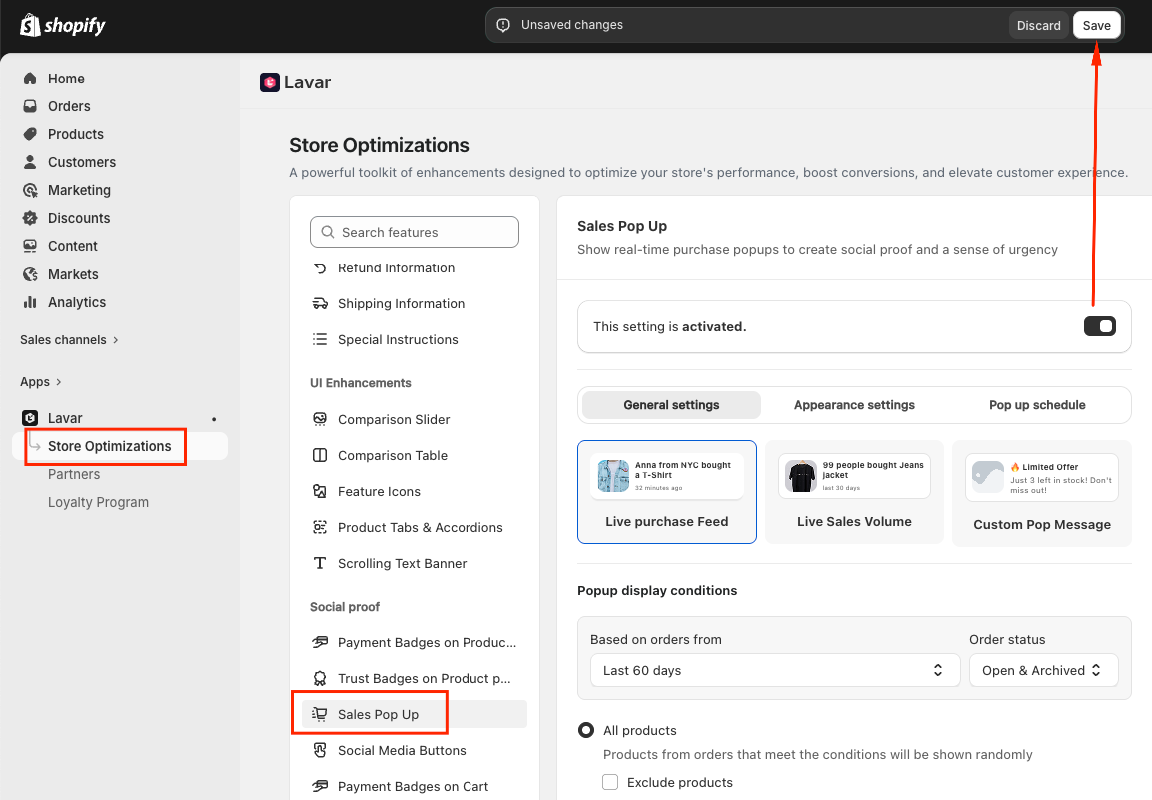
Open Lavar in your Shopify Admin.
Navigate to Store Optimizations → Sales Pop-up
Click Activate feature and Save.
Step 3: Configure the Sales Pop-up Settings
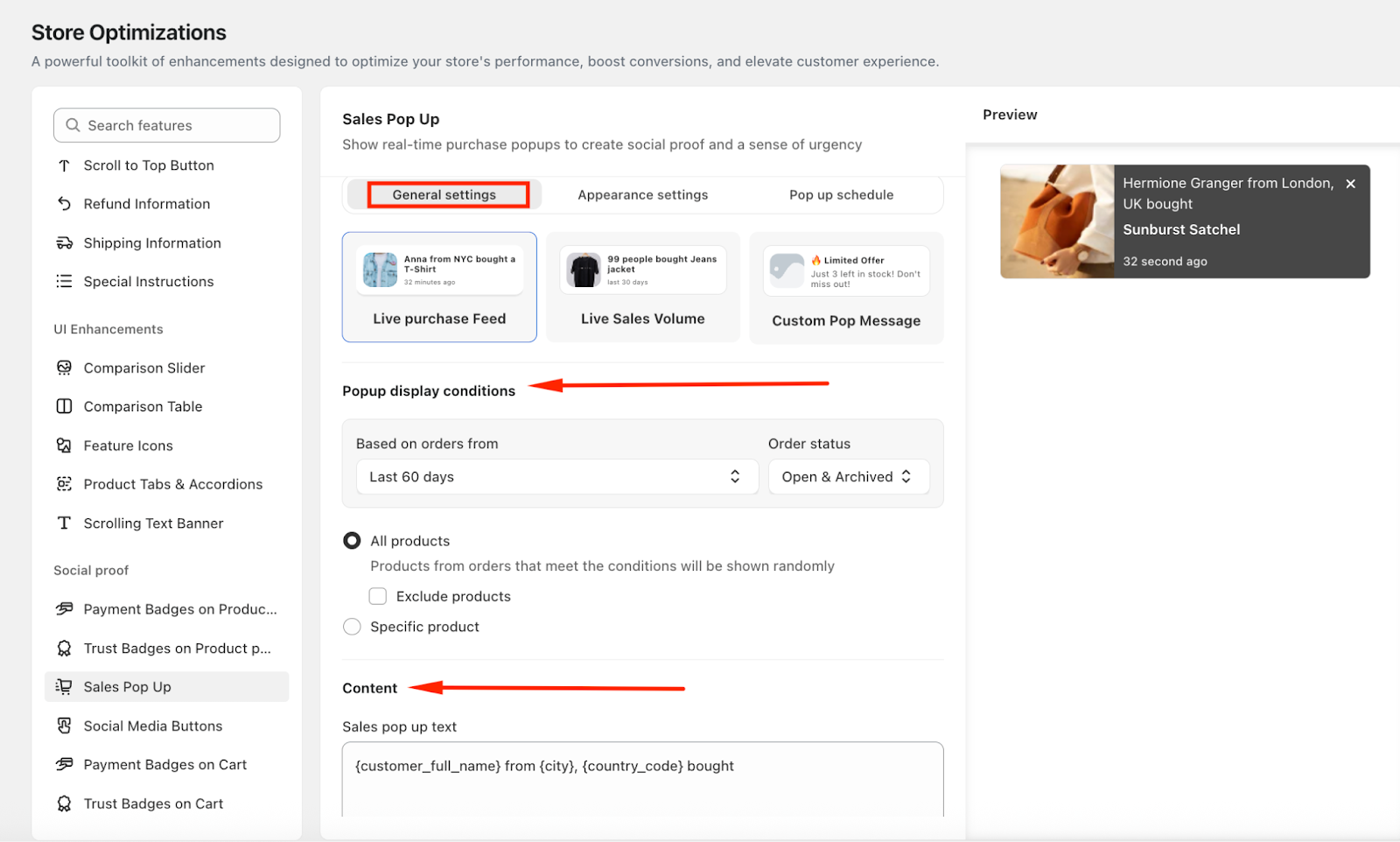
Live Purchase Feed: This option displays real-time notifications showing recent purchases made in your store.
For example: Hermione Granger from London, UK bought Sunburst Satchel 32 seconds ago
You can configure the popup display conditions:
Based on orders from: Today, Yesterday, Last 7 / 30 / 60 days
Order status: Open or Archived
Choose All Products or Specific Products
Next, enter the content for the pop-up
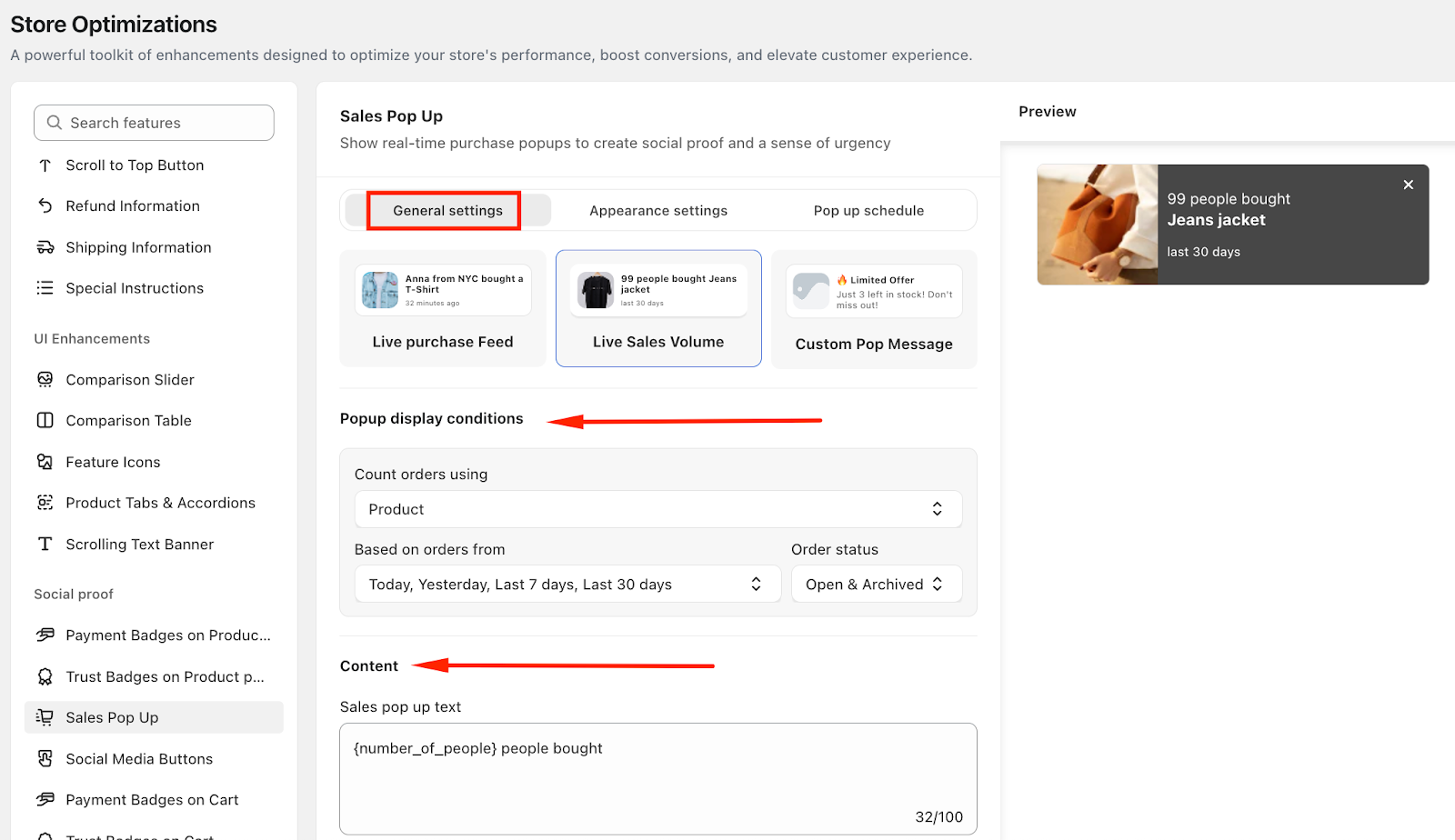
Live Sales Volume: This option highlights how many people have purchased a product within a specific time period.
For example: 99 people bought this Jeans Jacket in the last 30 days
You can configure the popup display conditions:
Count orders using: Product / Product Category / Collection
Based on orders from: Today, Yesterday, Last 7 / 30 / 60 days
Order status: Open or Archived
Then enter the content for the popup
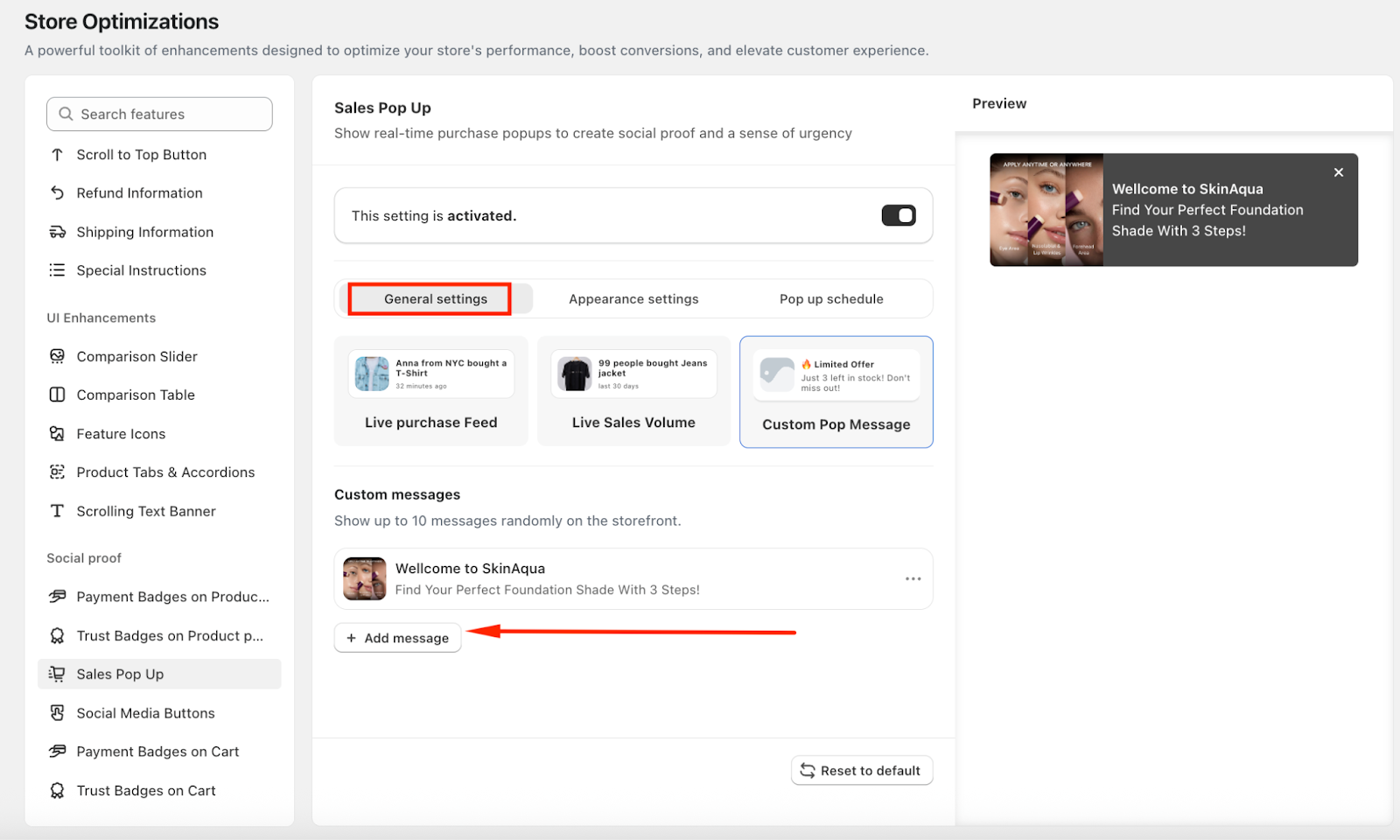
Custom Popup Message: You can create custom pop-up messages to highlight promotions, announcements, or special offers.
You can add up to 10 messages, which will display randomly on your storefront.
For each message, you can configure: Title, Message, Image, Link to a product or promotional page
Step 4: Customize the Sales Pop-up Appearance
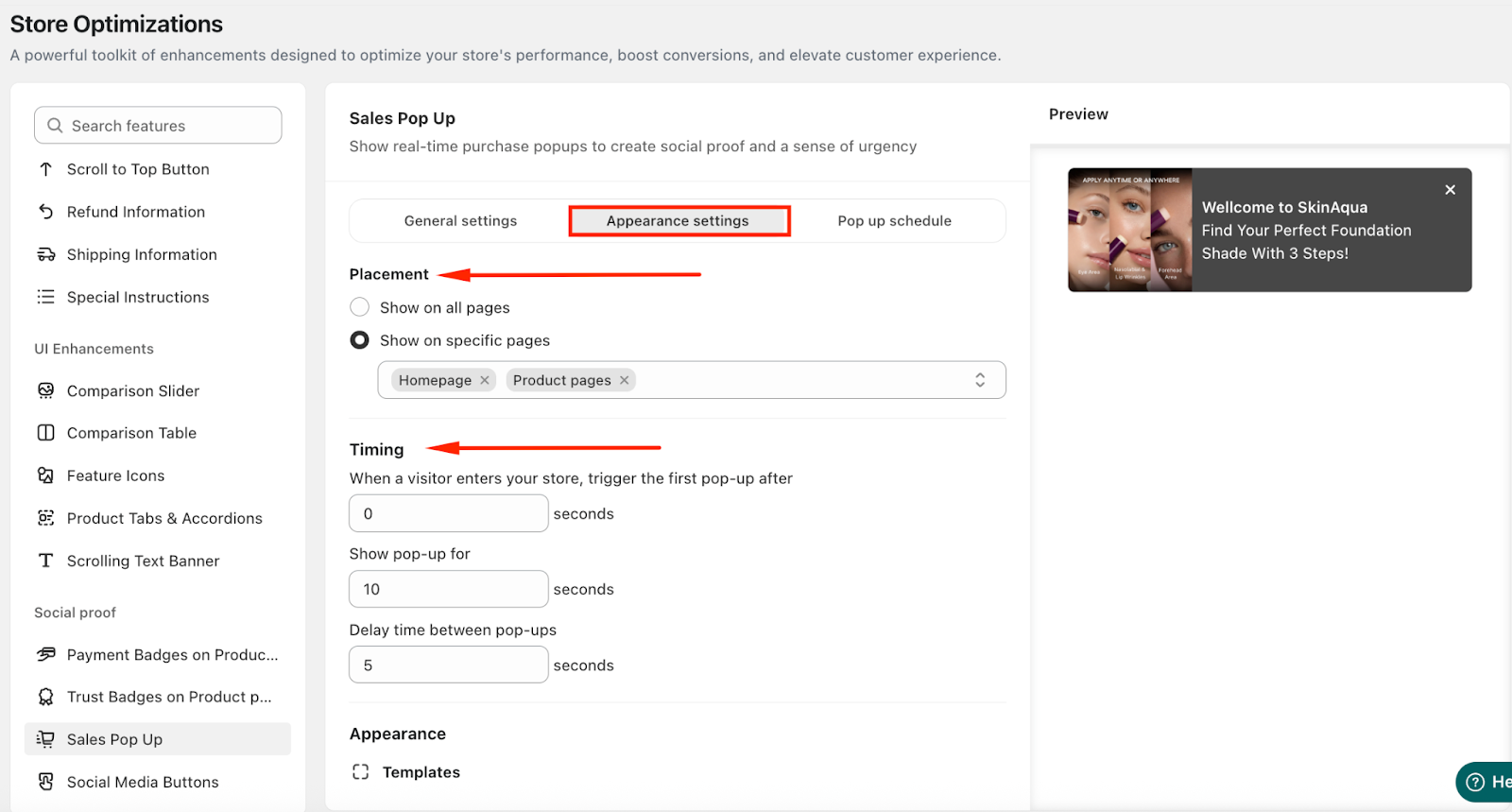
Navigate to the Appearance settings tab, where you can configure how and when the pop-ups appear.
Placement: Show on All Pages or Specific Pages (Homepage, Collection page, Product page, Cart page)
Timing:
Trigger the first pop-up after a visitor enters your store (seconds)
Show pop-up for (seconds)
Delay time between pop-ups (seconds)
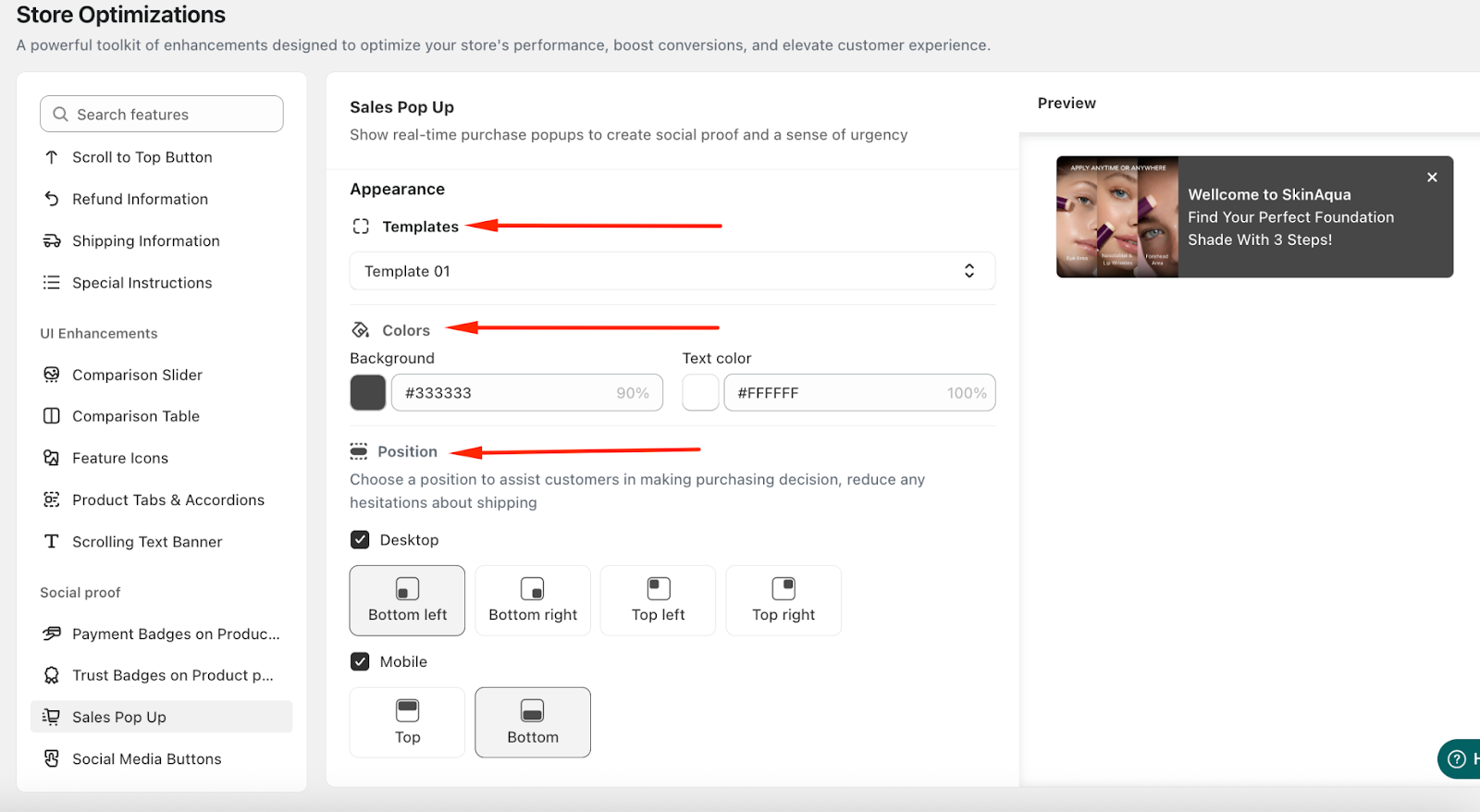
In the Appearance section, you can:
Choose the template you prefer
Apply custom colors to match your store design
Choose the pop-op position for both desktop and mobile
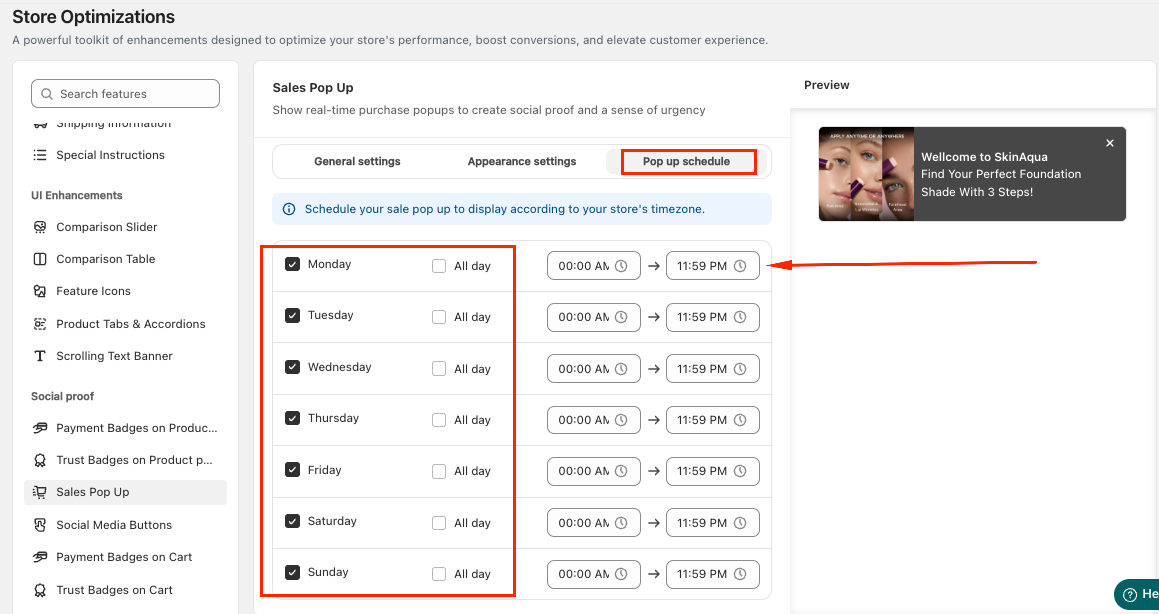
Step 5: Schedule the Sales Pop Up
You can schedule when the Sales Pop-ups will display according to your store’s timezone.
Choose a specific day of the week, set a time range, or allow the pop-ups to run all day.
If you need further assistance, please feel free to contact us at support@lavar.app or submit a ticket here.
Was this article helpful?
That’s Great!
Thank you for your feedback
Sorry! We couldn't be helpful
Thank you for your feedback
Feedback sent
We appreciate your effort and will try to fix the article