Size charts help customers choose the right fit and reduce returns. Follow the steps below to create and display a size chart using Lavar.
How the Size Chart Appears on Your Storefront:
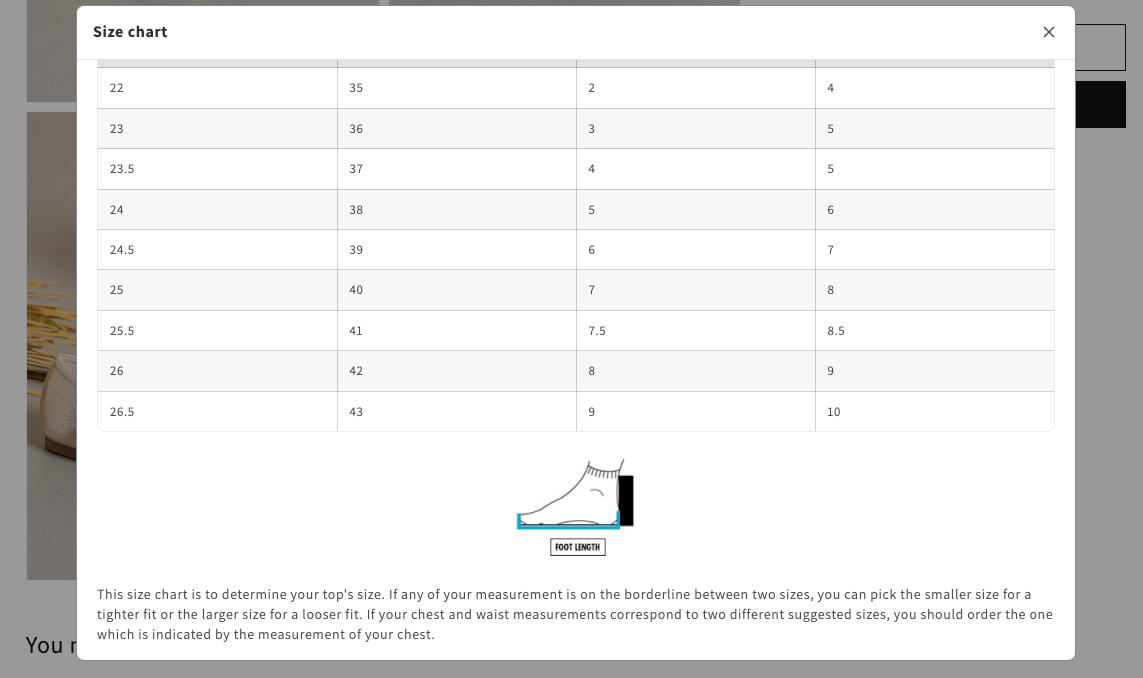
How to Set It Up
Step 1: Enable Lavar in Your Theme
Make sure the Lavar app embed is enabled in your Theme Editor before creating a size chart.
Please refer to this article for detailed instructions.
Step 2: Create a Size Chart
Open Lavar in your Shopify Admin.
Navigate to Store Optimizations → Size Chart.
Click Add Size Chart.
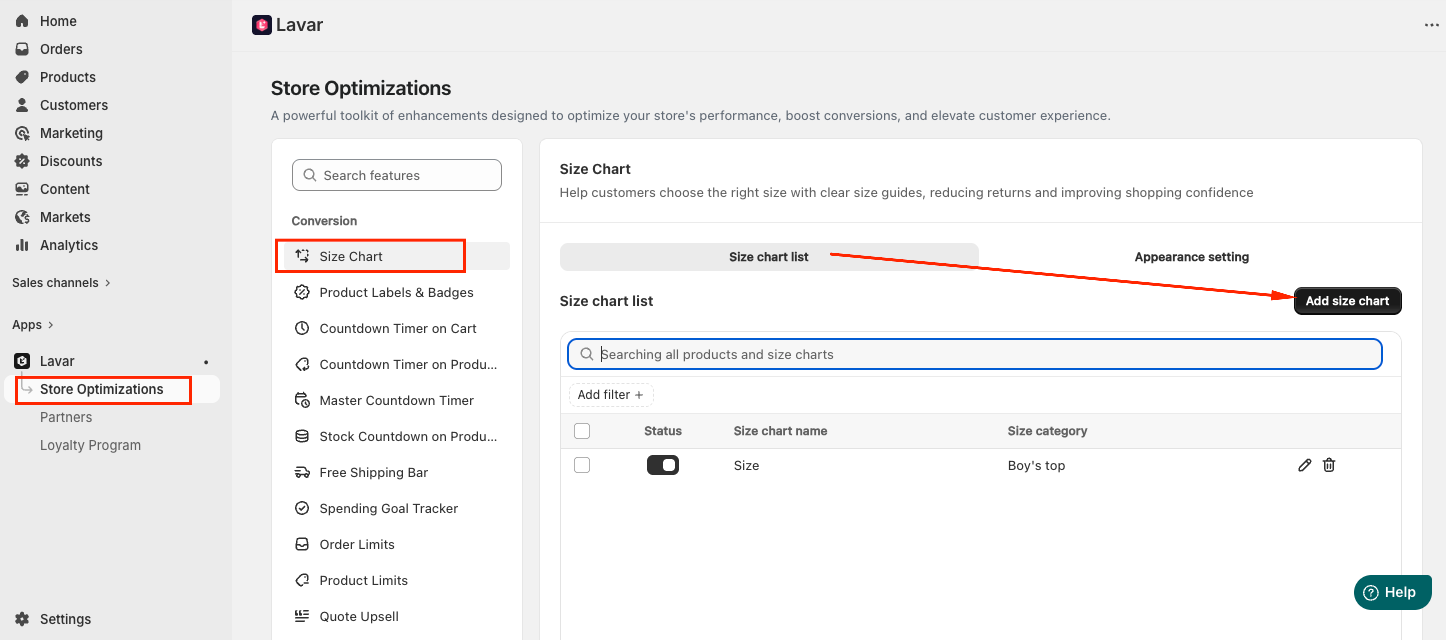
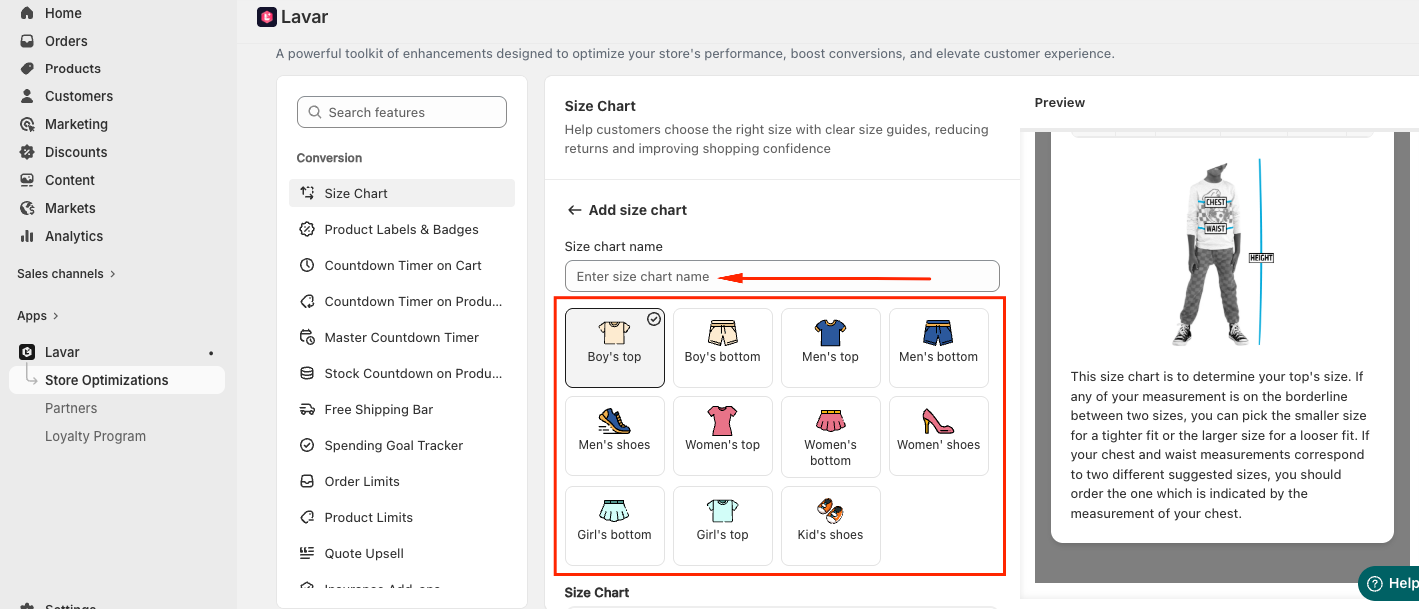
Then configure your chart:
Enter a name (example: Men’s Top Size Chart)
Choose a suitable template for your product category
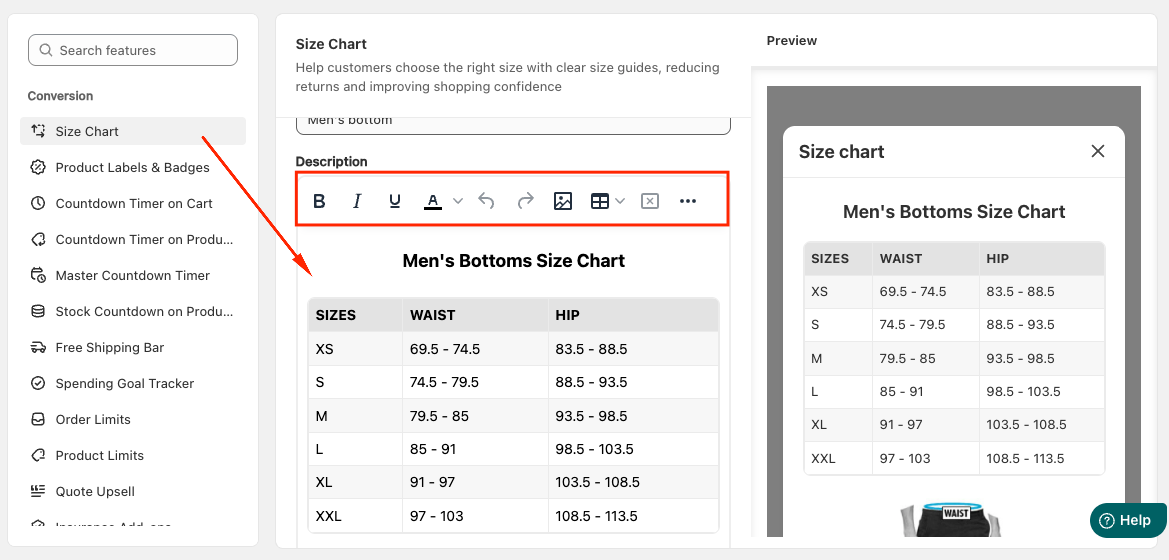
Create or edit the size table description manually:
Edit cells directly
Add or remove rows and columns
Insert images or links
Adjust fonts and colors
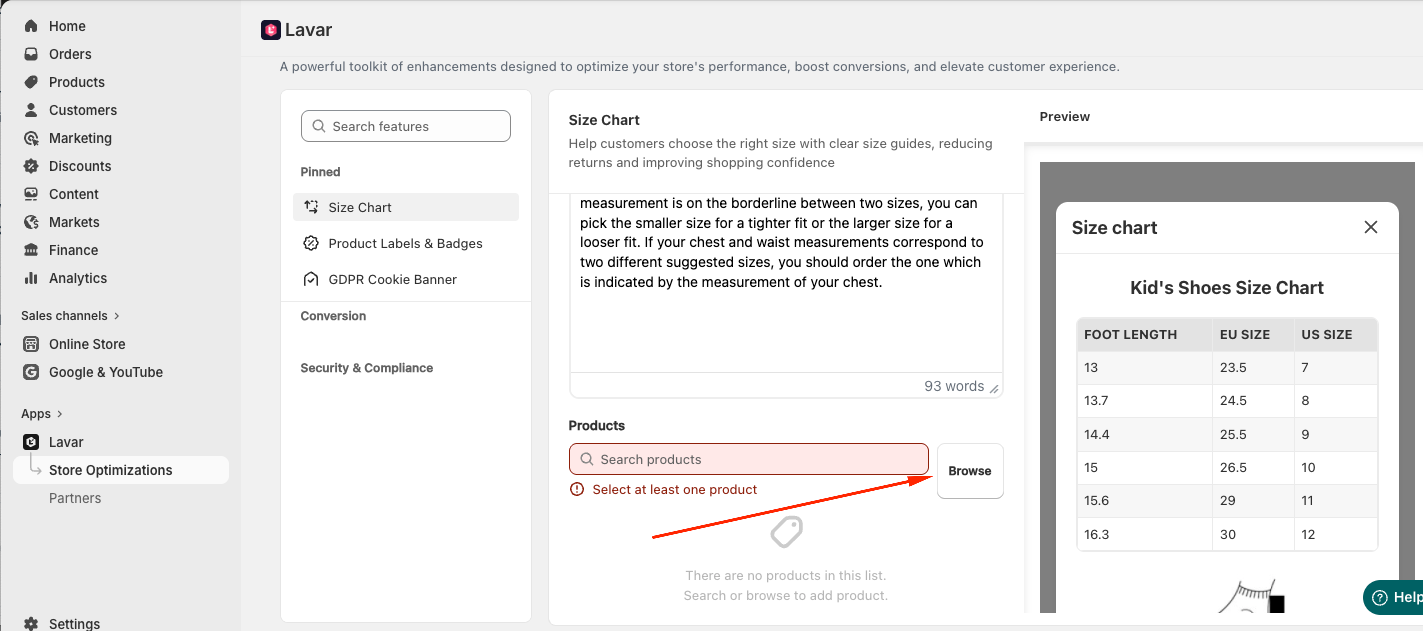
Assign Products: Select the products where the size chart will appear.
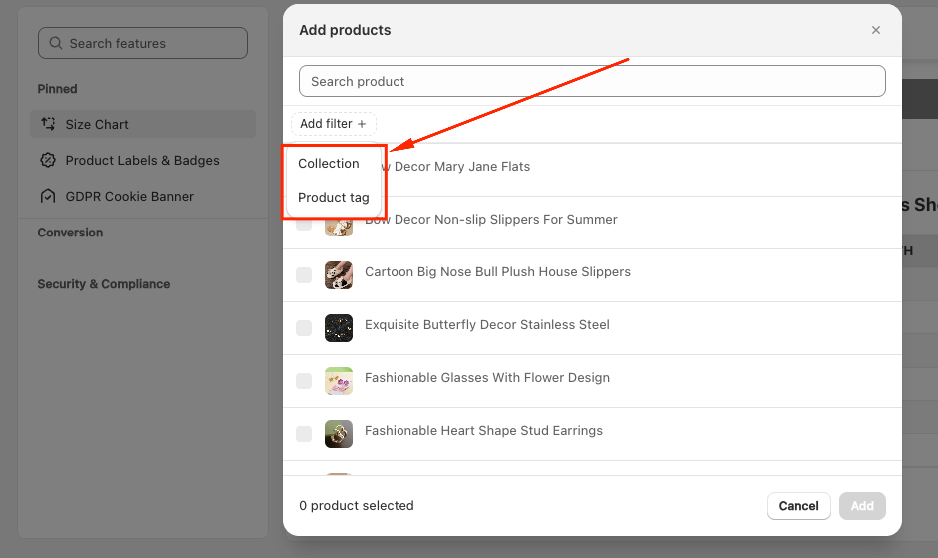
You can filter products by Collection or Product tag:
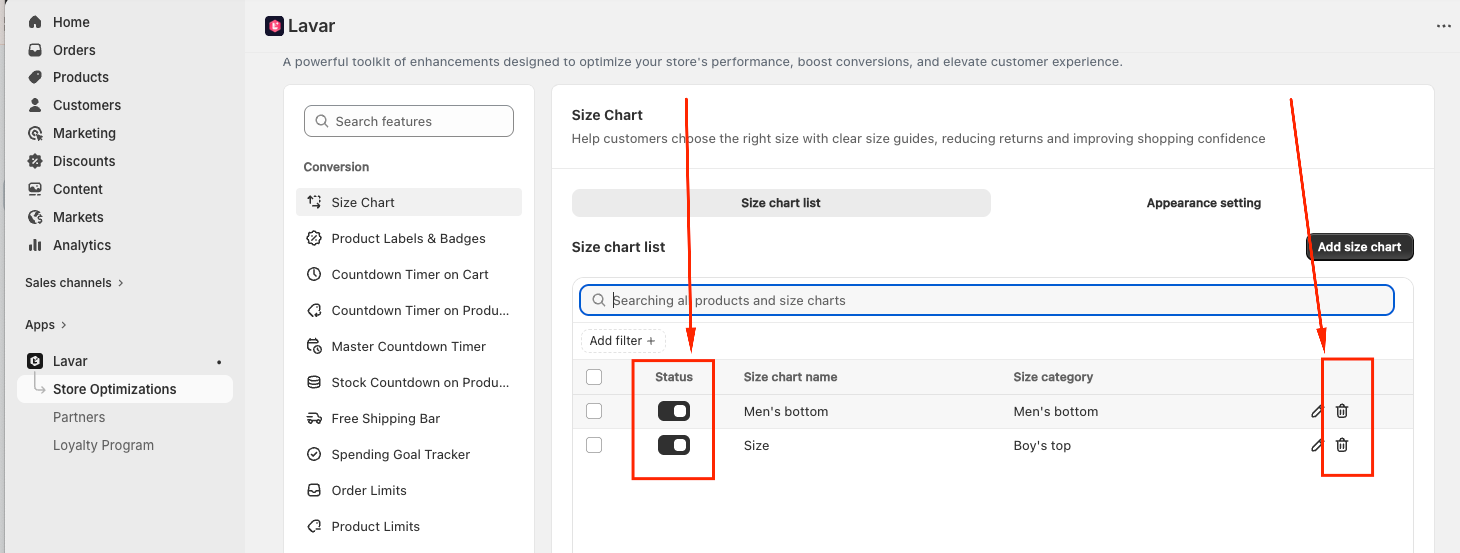
After creating the size chart, you can Activate or Delete it anytime.
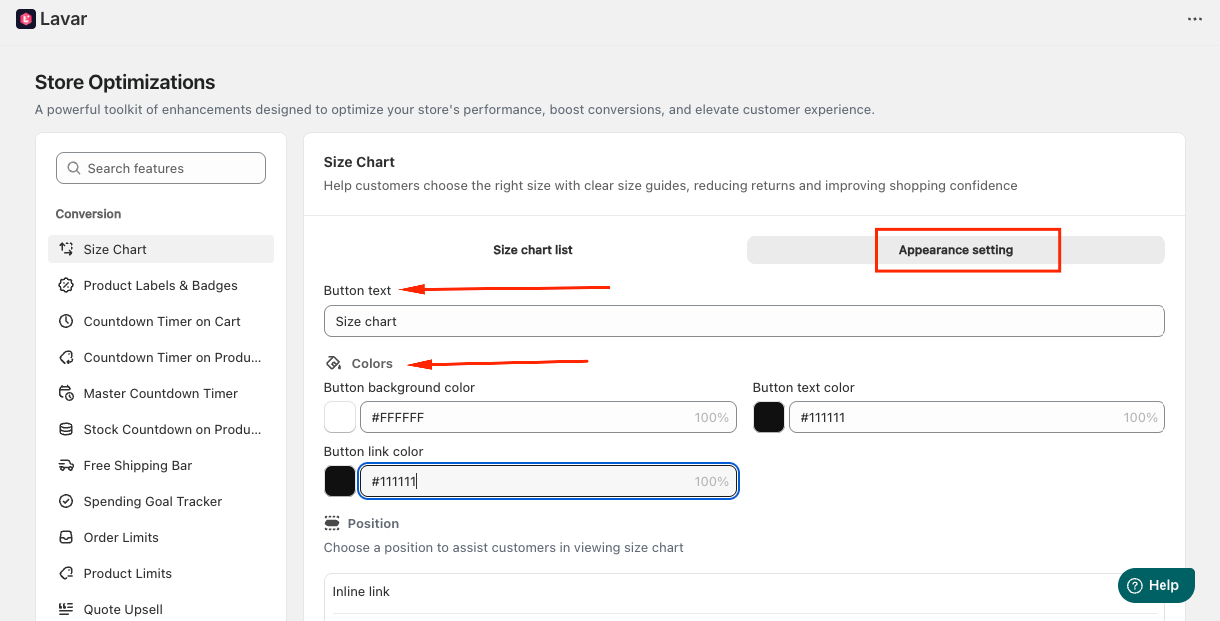
Step 3: Customize Size Chart Appearance
In the Appearance Settings section, you can change the button text and apply the color for the Size Chart.
Step 4: Choose Display Position on Storefront
You can select how the size chart appears:
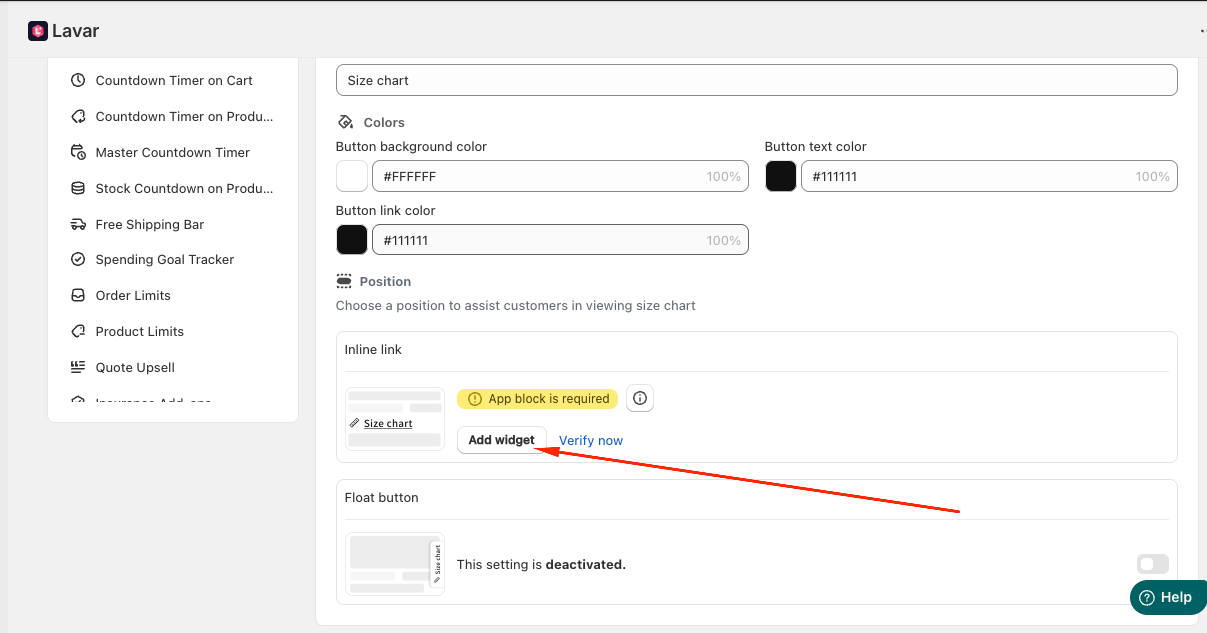
Inline Link: Requires adding the Lavar app block in the Theme Editor.
Click Add widget to open the Theme Editor.
- You will be directed to the Theme Editor page. Then you can move the Size chart to the position you want and click Save:
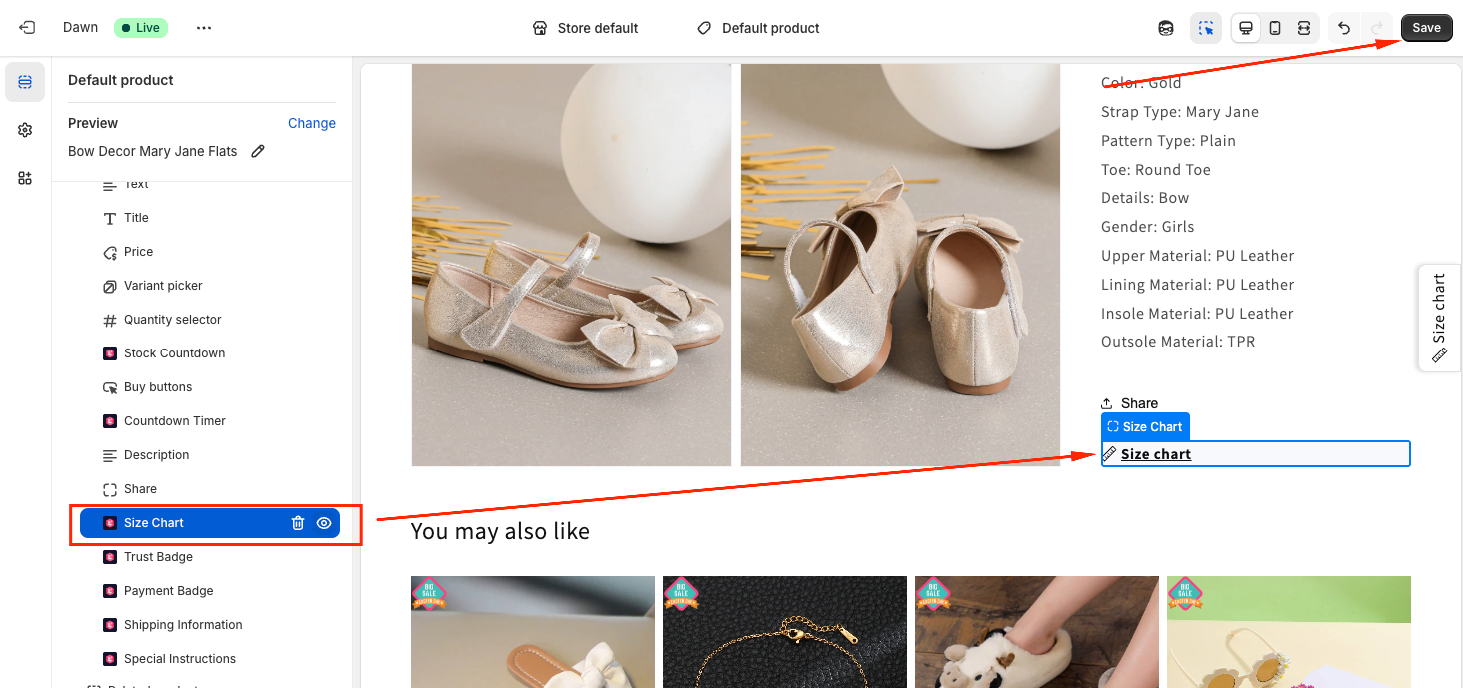
After setup, return to the app and click Verify Now to confirm the app block was added correctly.
Floating Button: Displays a floating size chart button automatically on product pages.
If you need further assistance, please feel free to contact us at support@lavar.app or submit a ticket here.
Was this article helpful?
That’s Great!
Thank you for your feedback
Sorry! We couldn't be helpful
Thank you for your feedback
Feedback sent
We appreciate your effort and will try to fix the article