The Master Countdown Timer allows you to display a storewide countdown to highlight flash sales, seasonal promotions, or special events. A visible timer helps create urgency and reminds shoppers not to miss limited-time offers.
How the Master Countdown displays on the Storefront

How to Set It Up
Step 1: Enable Lavar in Your Theme
Make sure the Lavar app embed is enabled in your Theme Editor first.
Please refer to this article for detailed instructions.
Step 2: Add Master Countdown Timer Widget on the Storefront
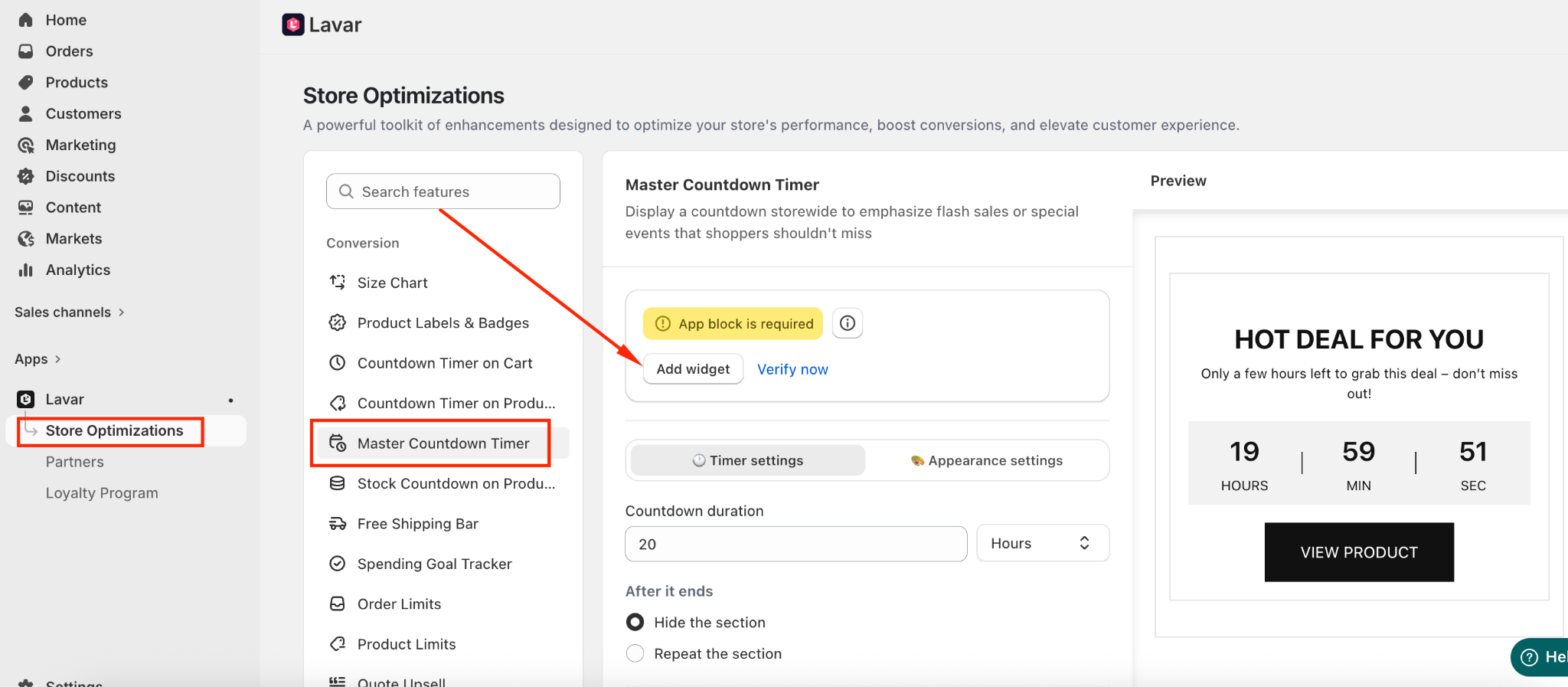
Open Lavar in your Shopify Admin.
Navigate to Store Optimizations → Master Countdown Timer
Click Add Widget.
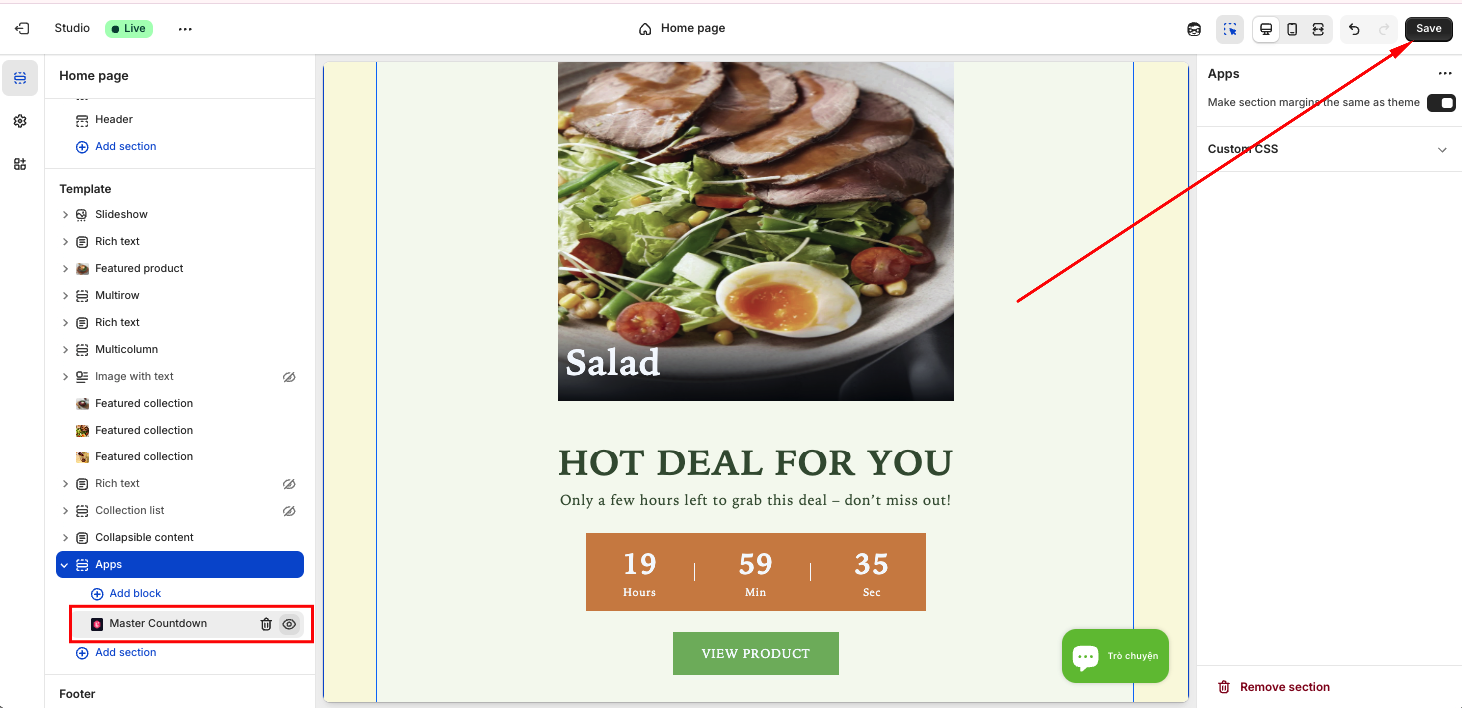
You will be directed to the Theme Editor page. Drag and place the Master Countdown Timer block in your desired position and click Save:
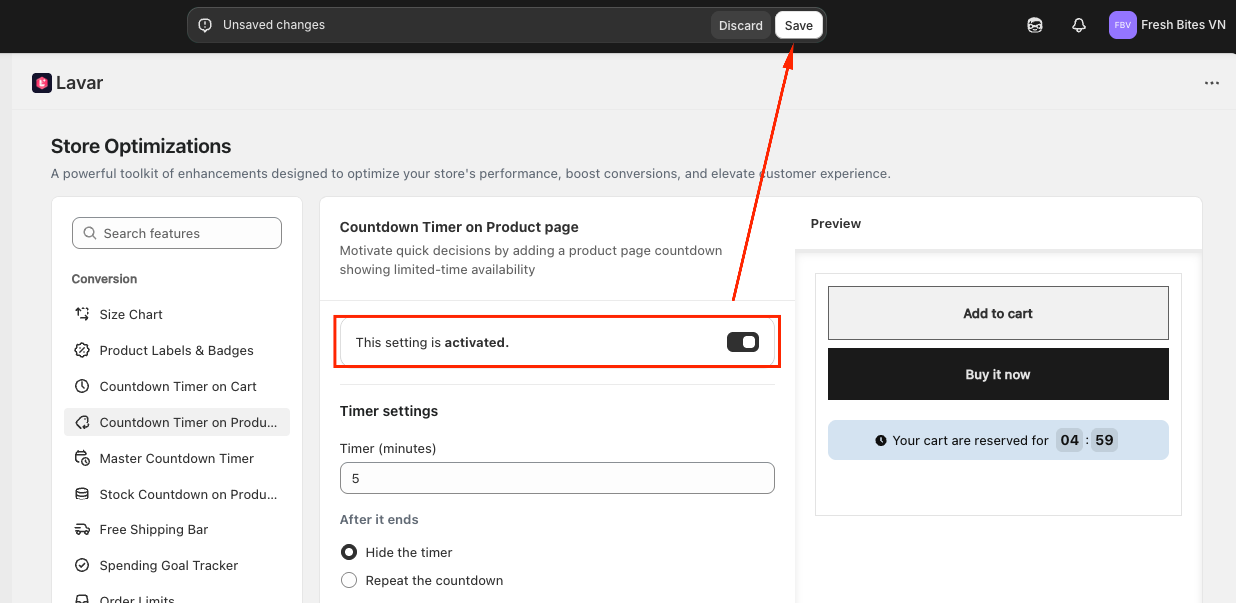
After setup, return to the app and click Verify Now to confirm the app block was added correctly. Then you can Activate the feature to see it on the storefront.
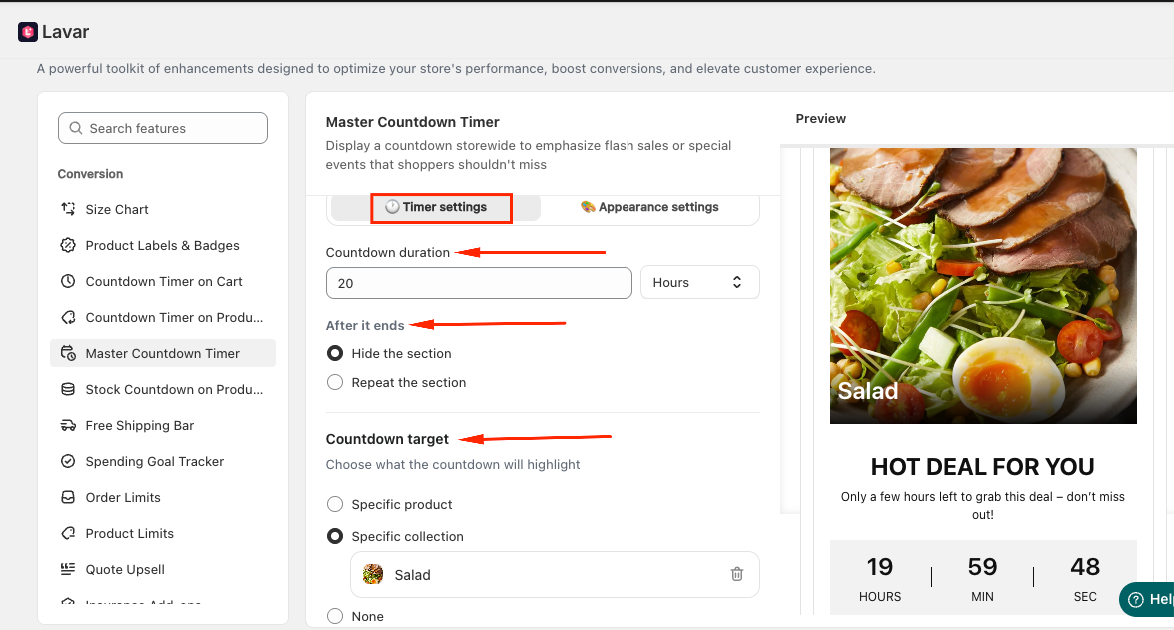
Step 3: Configure the Timer Settings
Enter the Countdown Duration (in Days/Hours/Minutes).
Choose what happens after the countdown ends: Hide the section or Repeat the section
Select a Countdown Target to highlight a product or collection with a limited offer. Choose None if you do not want to highlight any specific item.
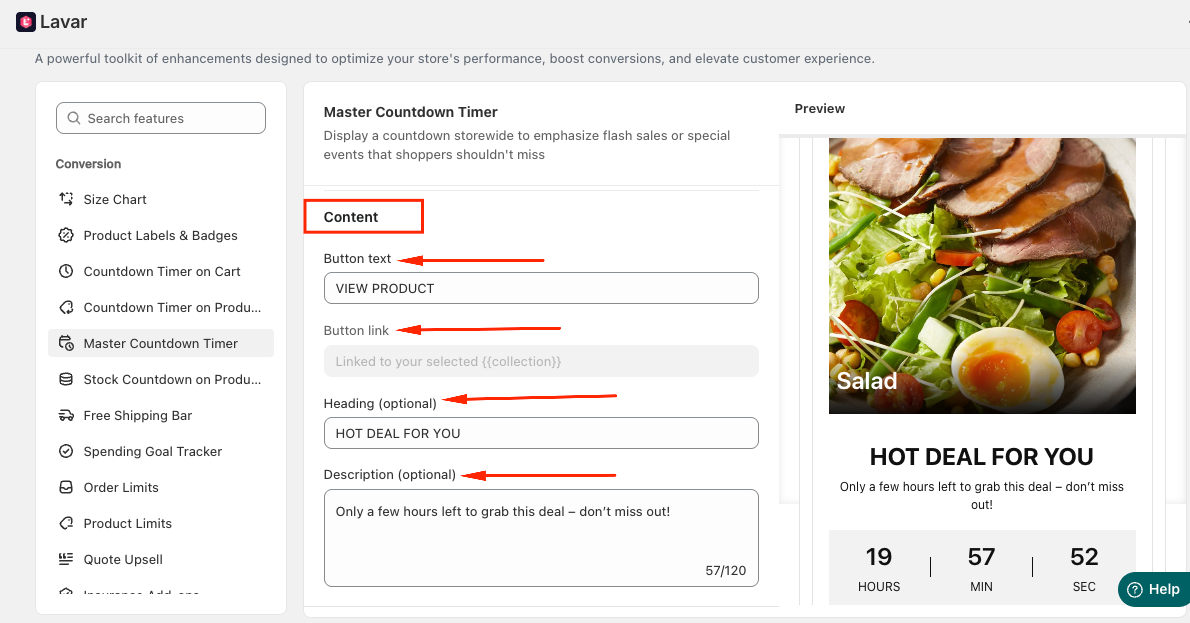
Enter the display content: Button text, Button link, Heading and Description
Step 4: Customize the Master Countdown Appearance
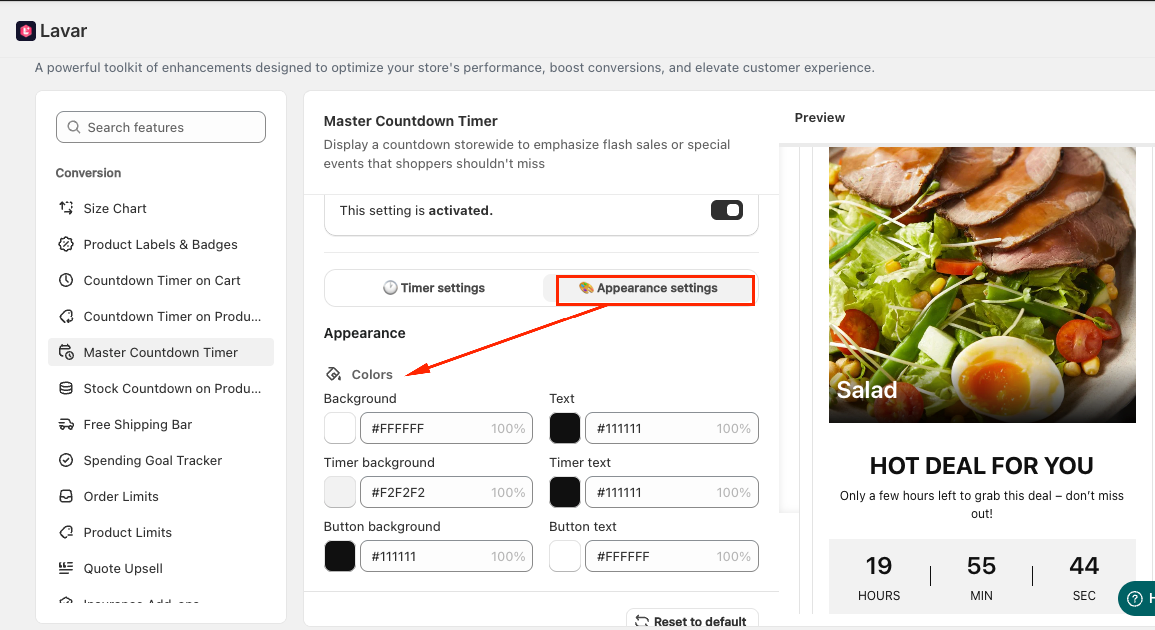
In the Appearance Settings section, you can apply colors for the Master Countdown Timer
After completing the setup, visit your storefront to make sure the countdown displays correctly.
If you need further assistance, please feel free to contact us at support@lavar.app or submit a ticket here.
Was this article helpful?
That’s Great!
Thank you for your feedback
Sorry! We couldn't be helpful
Thank you for your feedback
Feedback sent
We appreciate your effort and will try to fix the article