Add product labels and badges to highlight discounts, new products, or popular items so customers can quickly notice important products while browsing your store.
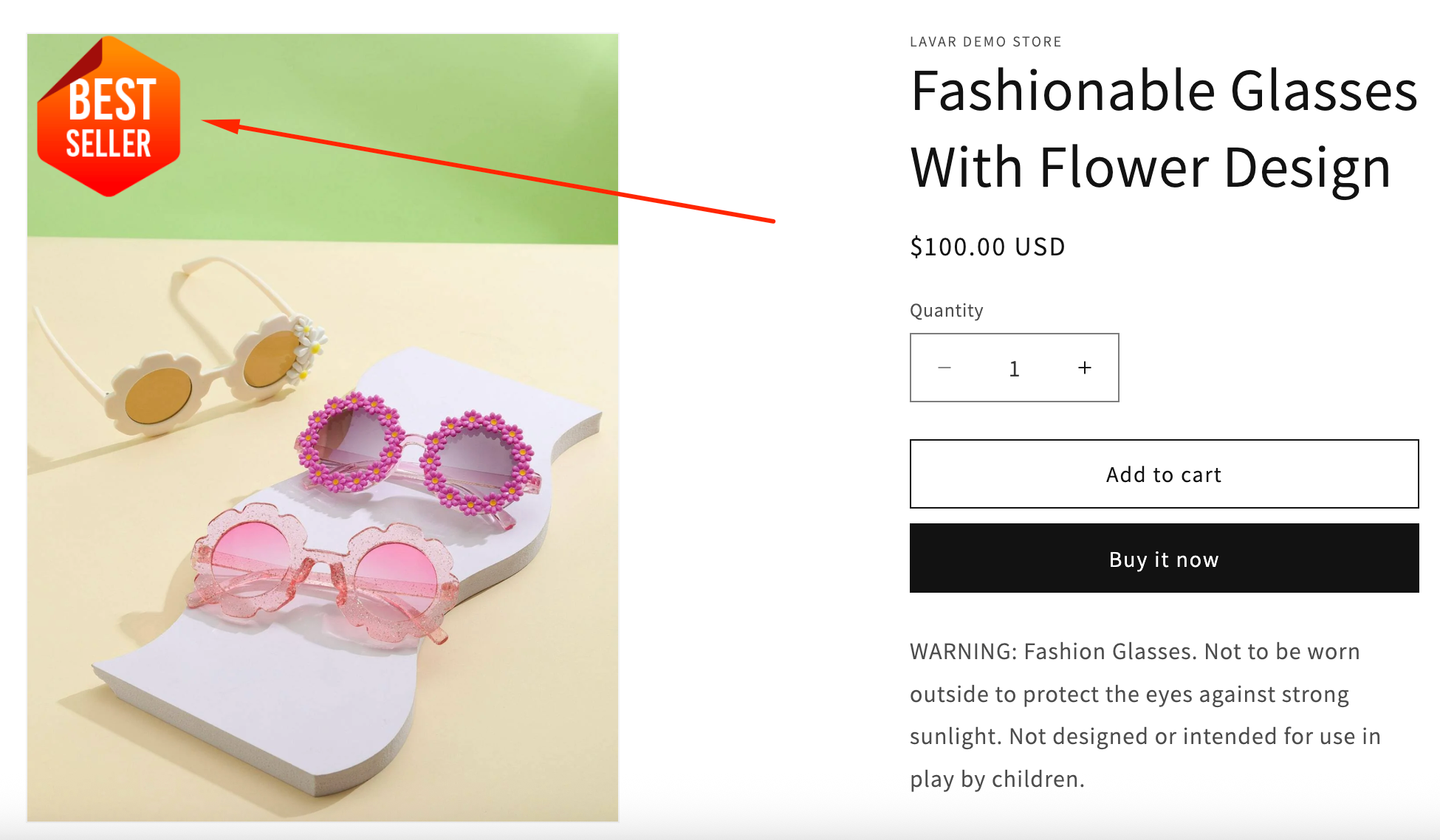
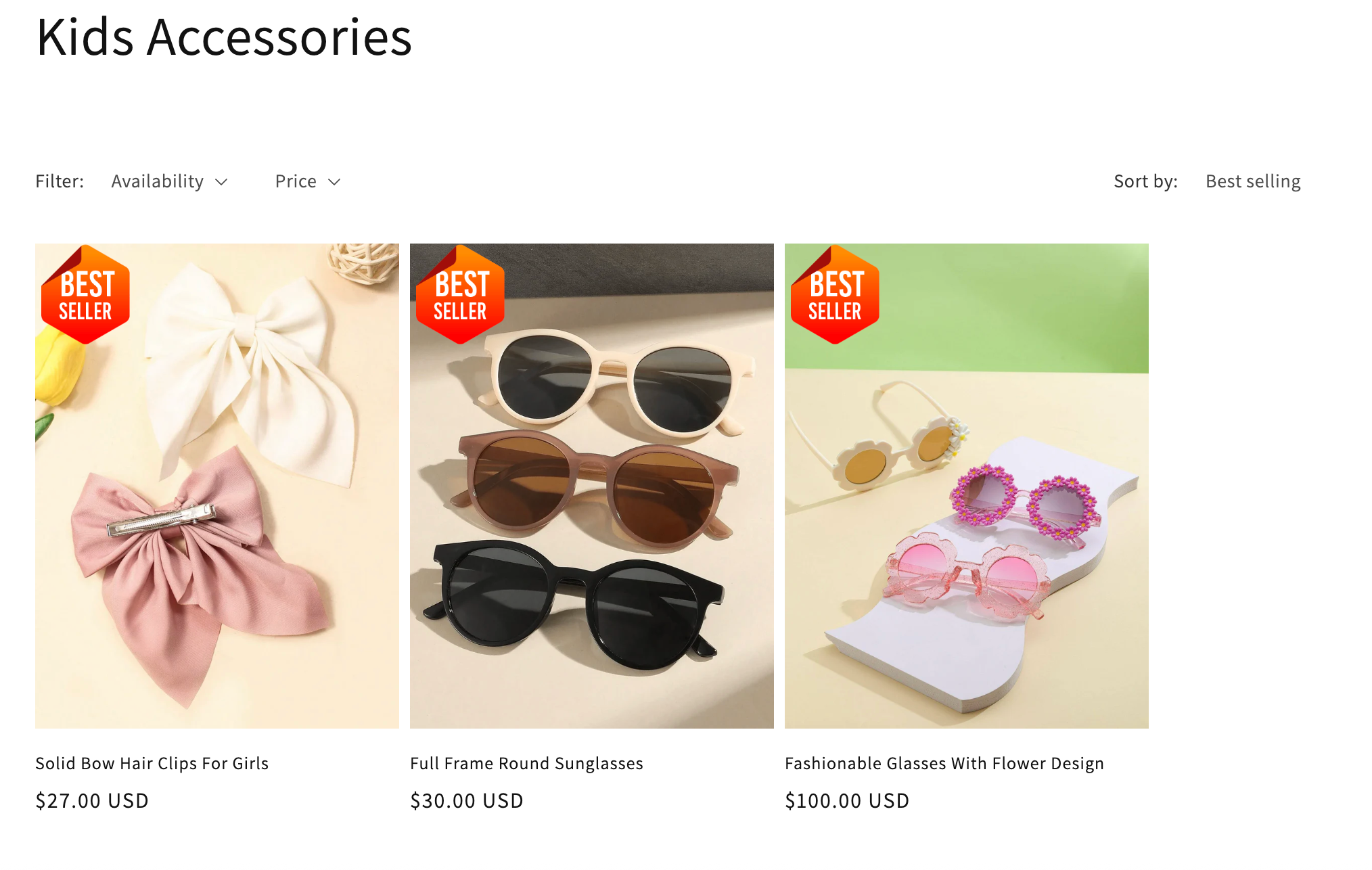
How the Product Labels & Badges Display on Your Storefront
On Product Page:
On Collection/Homepage:
How to Set It Up
Step 1: Enable Lavar in Your Theme
Make sure the Lavar app embed is enabled in your Theme Editor before creating the Product Labels & Badges
Please refer to this article for detailed instructions.
Step 2: Create Labels & Badges for Products
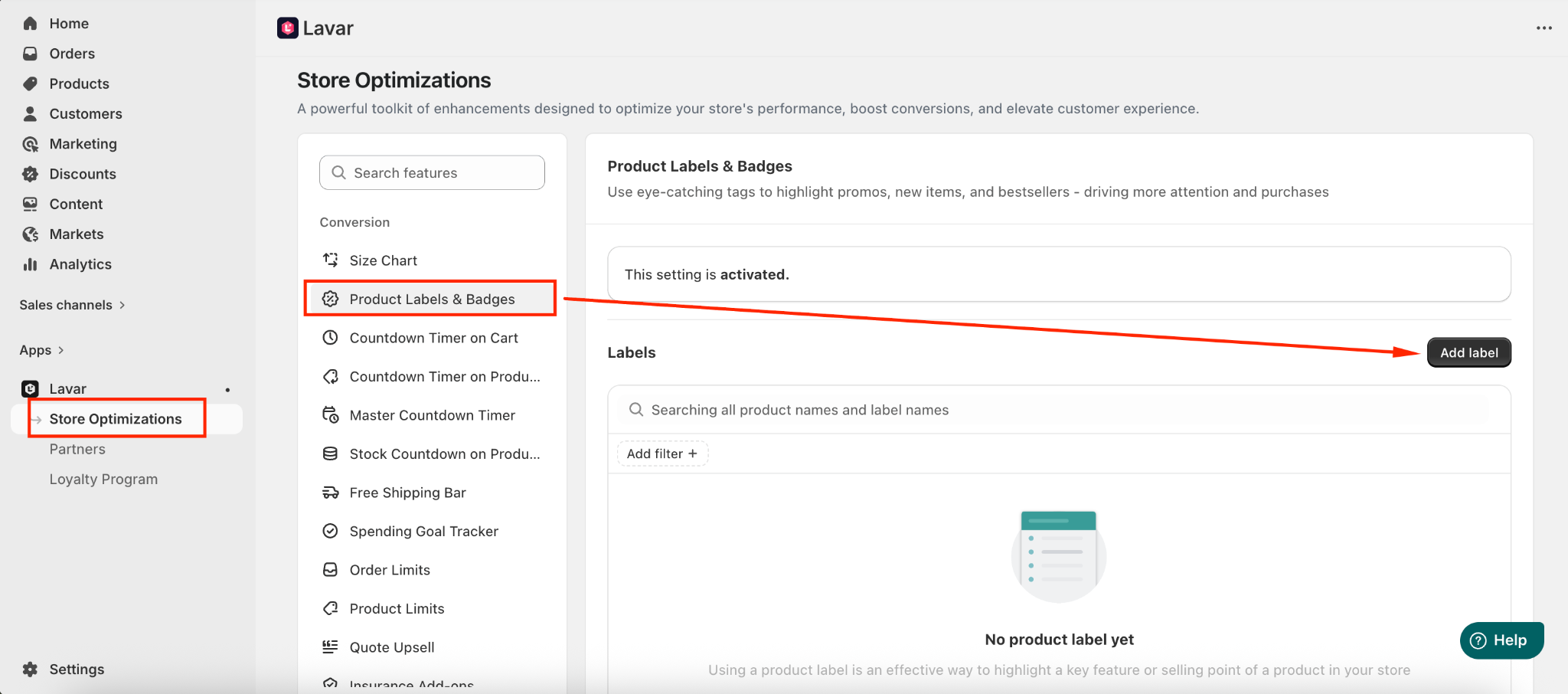
Open Lavar in your Shopify Admin.
Navigate to Store Optimizations → Product Labels & Badges
Click Add Label.
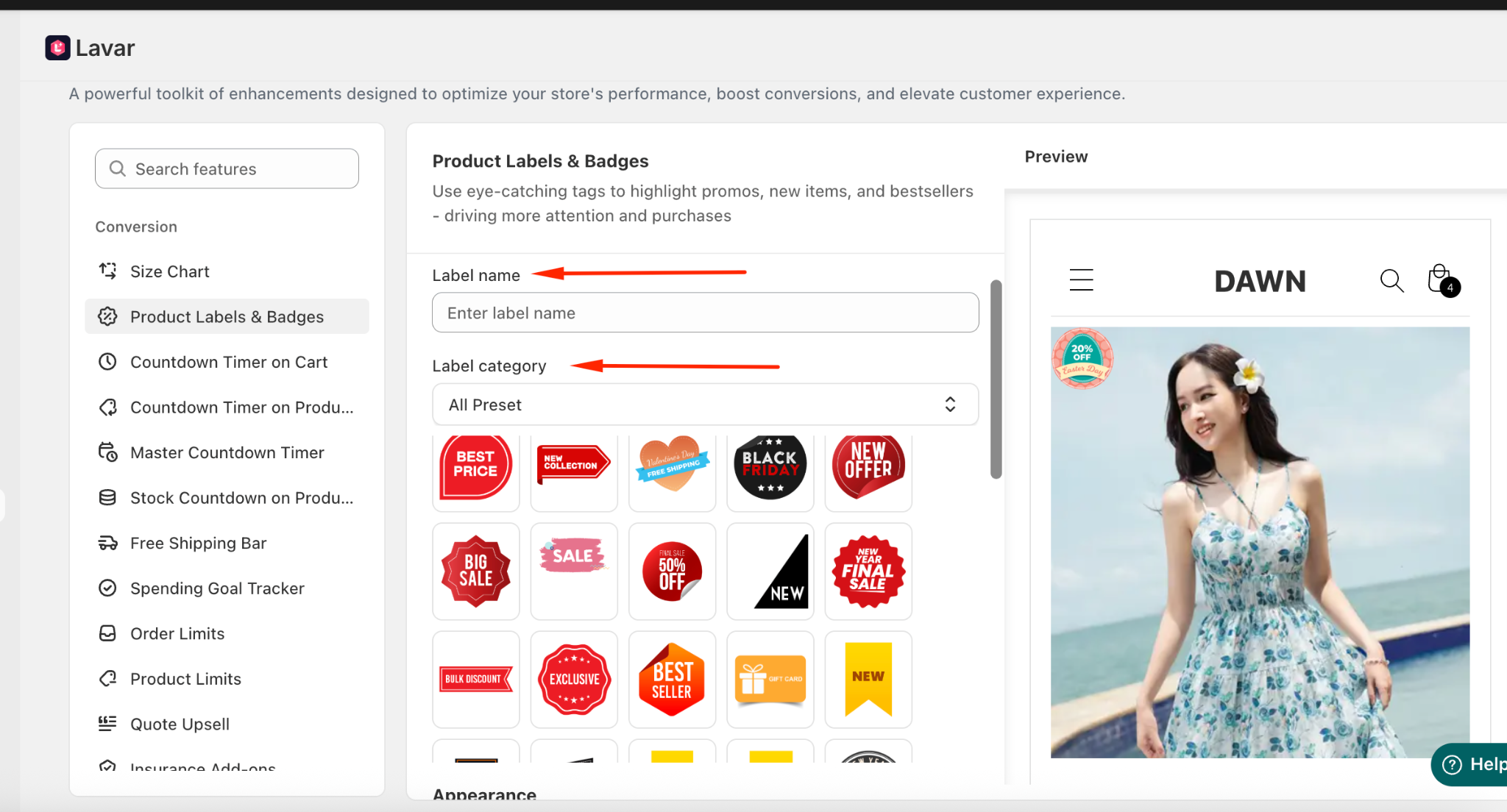
Then configure the label:
Enter Label name (example: Bestseller)
Choose a label design from the available list. You can also browse labels by category.
Assign Products: Select the products where the label will appear.
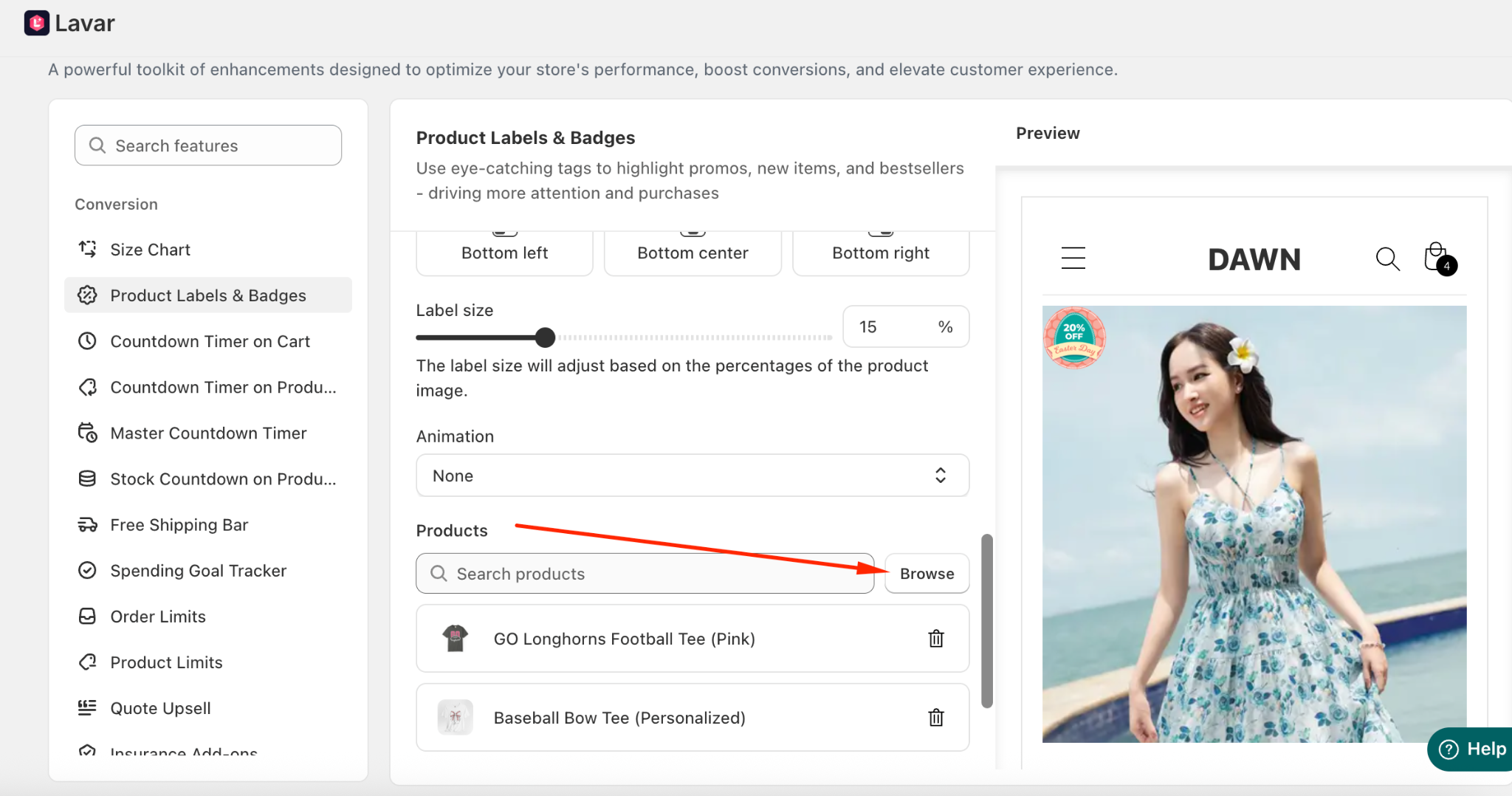
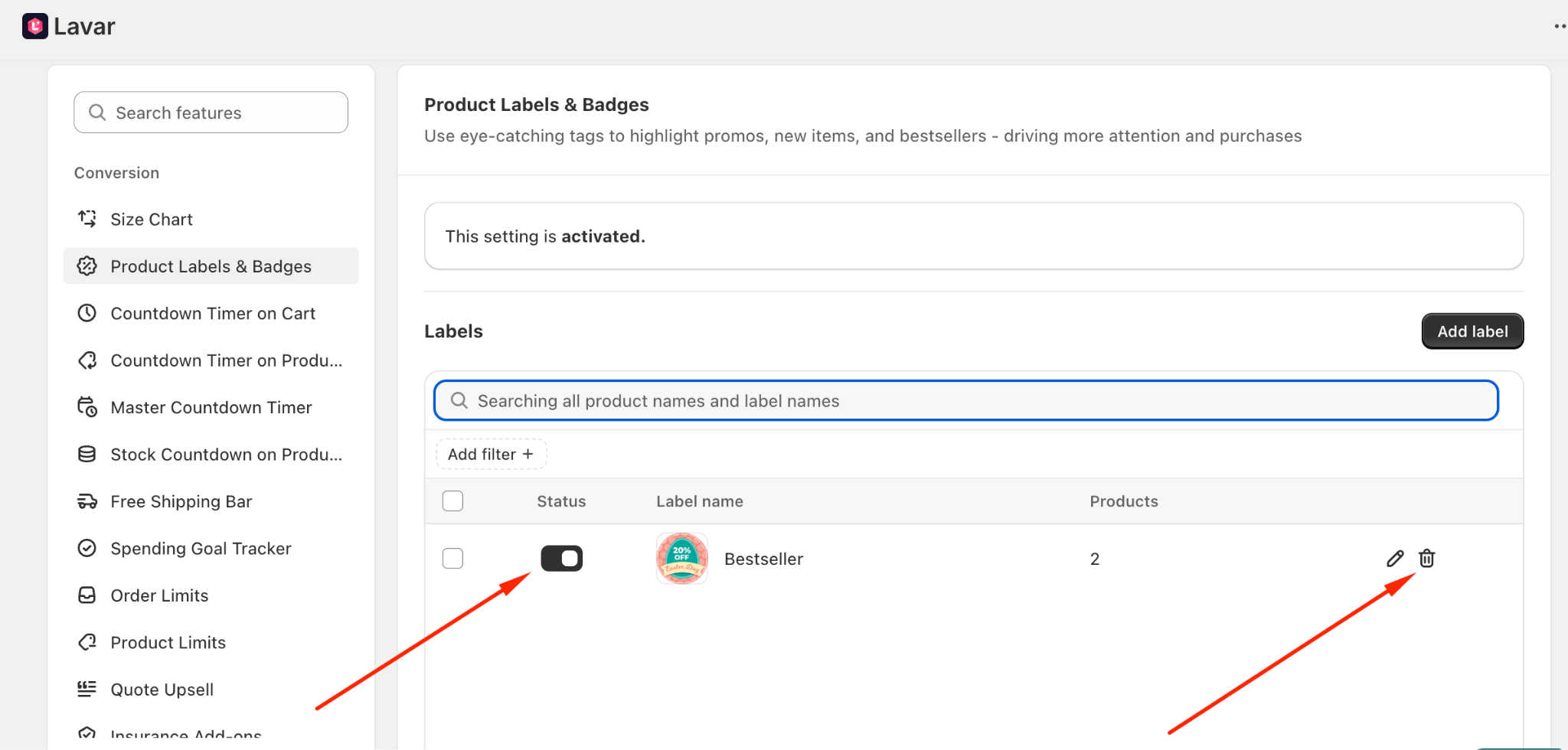
After creating the label, you can Activate or Delete it anytime.
Step 3: Customize Label Appearance
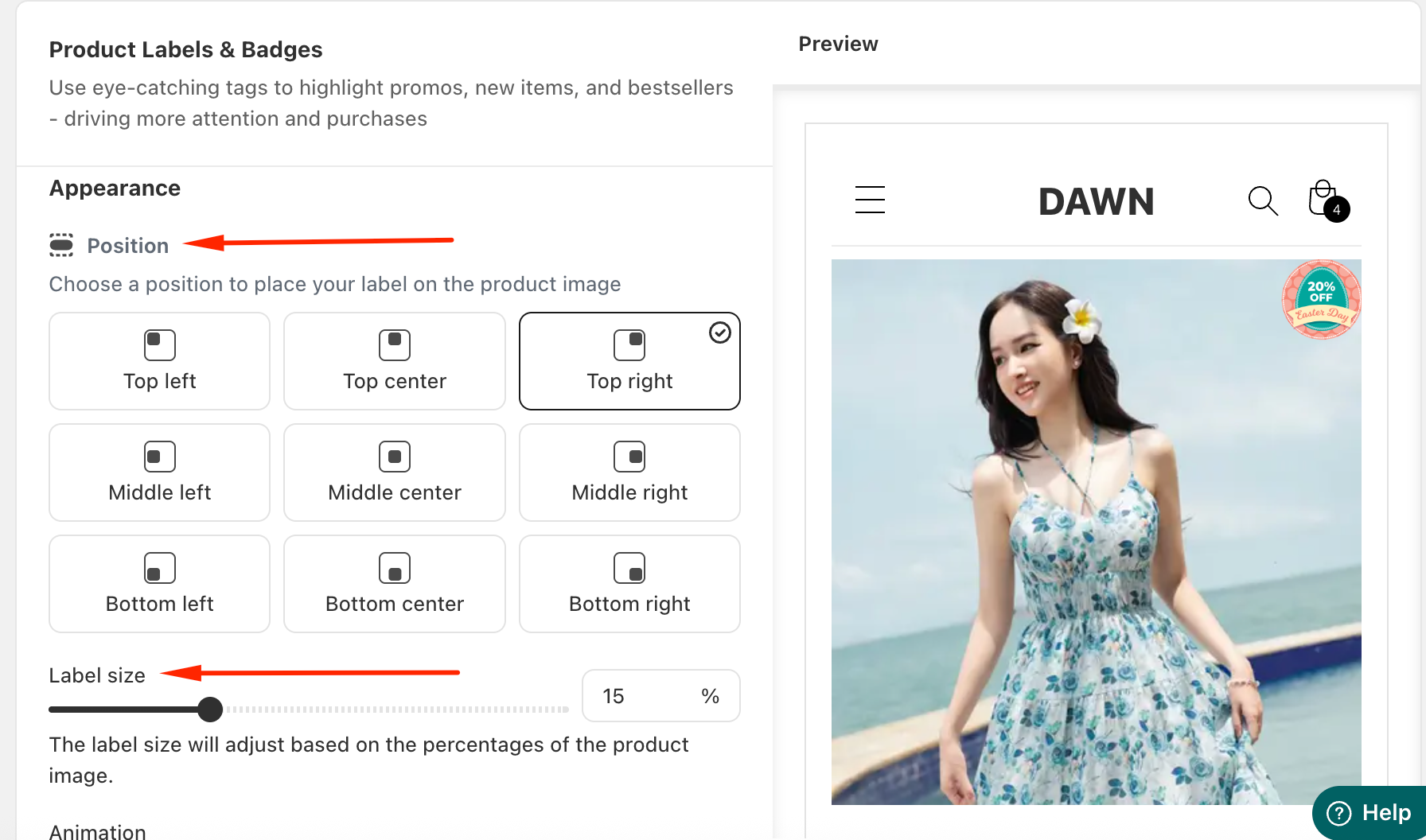
In the Appearance Settings section, you can change the label position and its size to display on the product image.
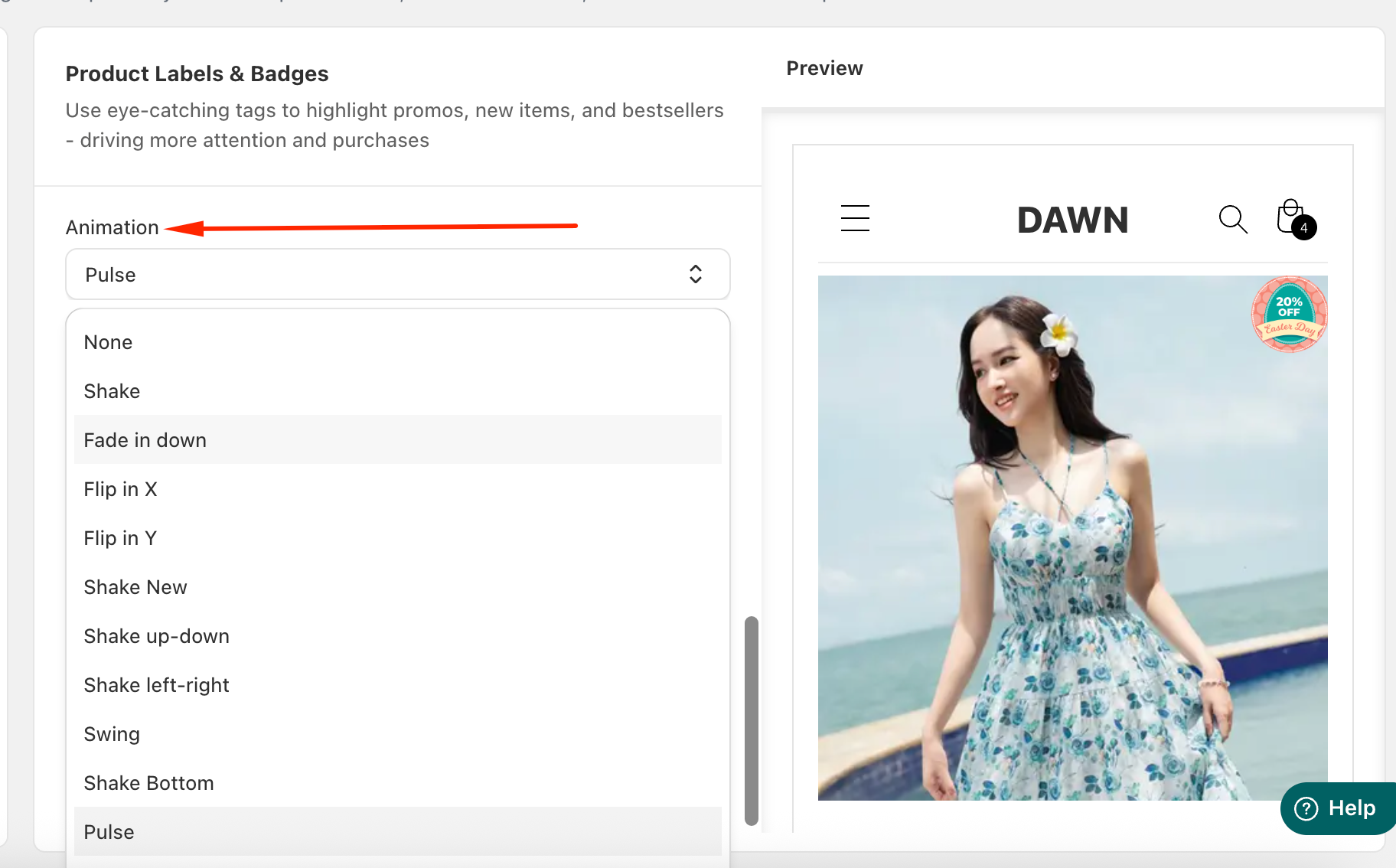
And select an animation effect to make the label more noticeable:
After activating the label, please check your storefront to make sure it displays as configured.
If you need further assistance, please feel free to contact us at support@lavar.app or submit a ticket here.
Was this article helpful?
That’s Great!
Thank you for your feedback
Sorry! We couldn't be helpful
Thank you for your feedback
Feedback sent
We appreciate your effort and will try to fix the article