The Content Protection feature helps prevent unauthorized copying or misuse of your store content by disabling actions such as text selection, right-click, drag-and-drop, and common keyboard shortcuts.
This feature is useful for protecting product descriptions, images, and other proprietary content from being easily copied.
How to Set It Up
Step 1: Enable Lavar in Your Theme
Make sure the Lavar app embed is enabled in your Theme Editor first.
Please refer to this article for detailed instructions.
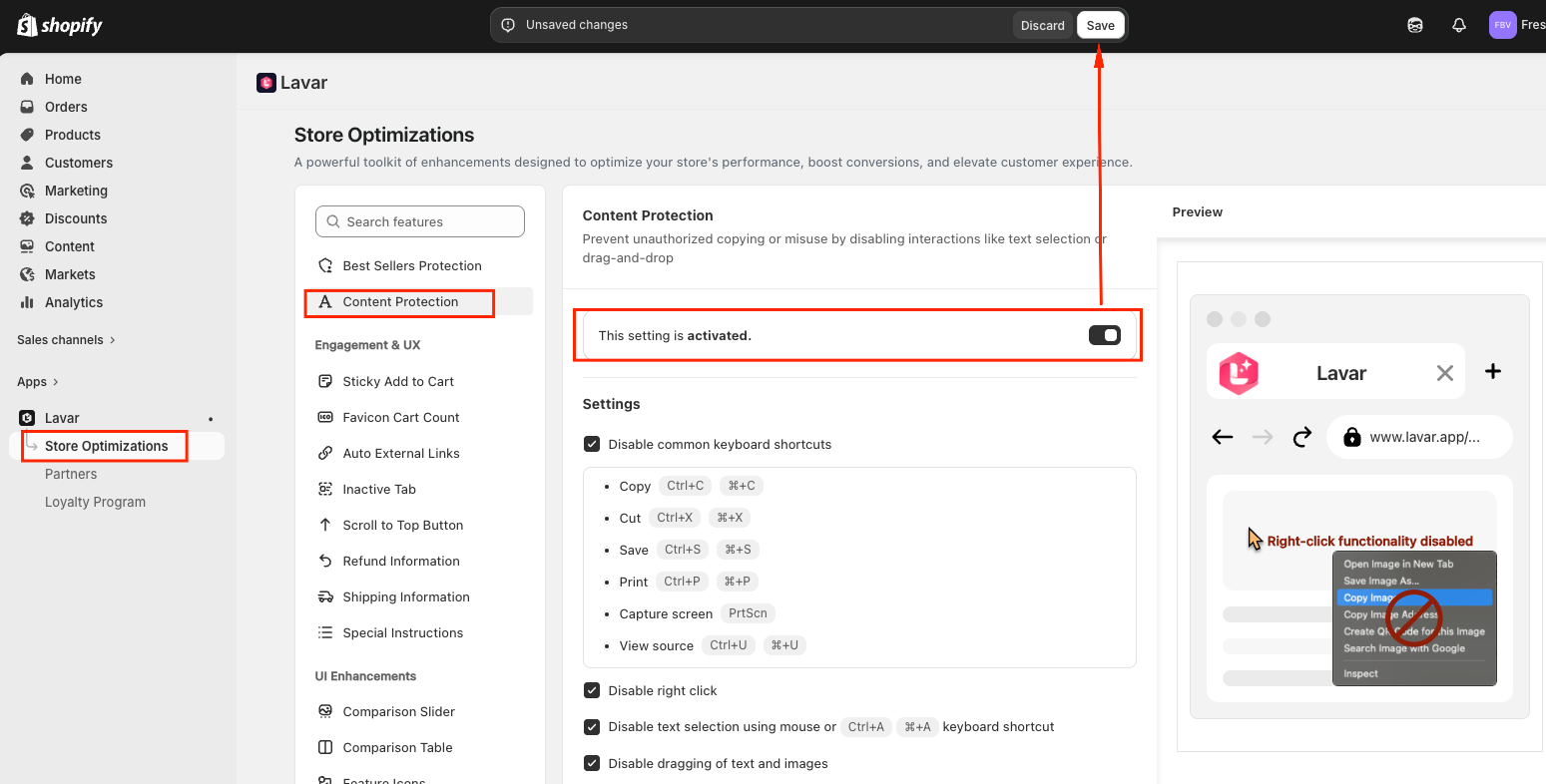
Step 2: Activate the feature Content Protection
Open Lavar in your Shopify Admin
Navigate to Store Optimizations → Content Protection
Click Activate feature and Save
Step 3: Configure the Content Protection Settings
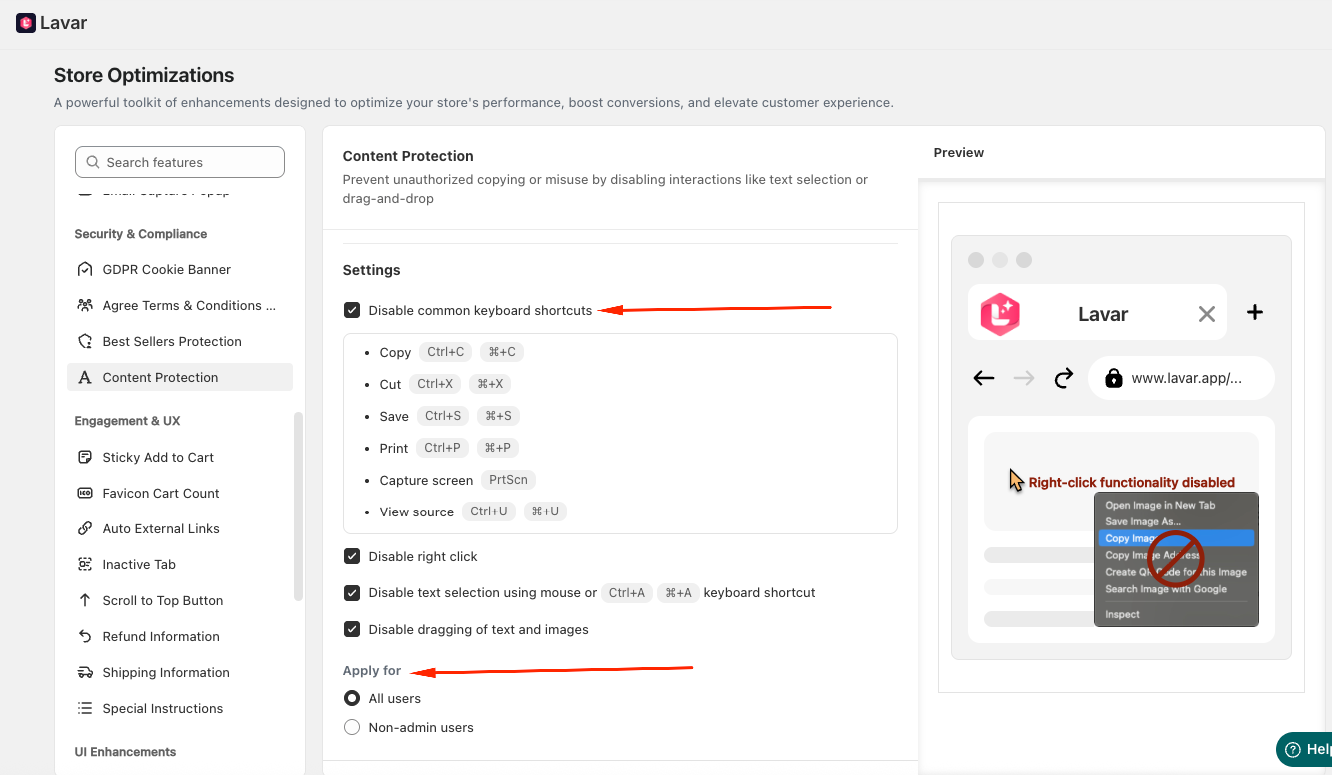
In the Settings section, you can choose which actions to disable:
Disable Common Keyboard Shortcuts: You can block the following shortcuts:
Copy – Ctrl + C / ⌘ + C
Cut – Ctrl + X / ⌘ + X
Save Page – Ctrl + S / ⌘ + S
Print – Ctrl + P / ⌘ + P
Screen Capture – PrtScn
View Source – Ctrl + U / ⌘ + U
Disable Mouse & Interaction Actions
Disable right-click
Disable text selection (including Ctrl + A / ⌘ + A)
Disable dragging of text and images
Besides, you can apply the Content Protection for All users or Non-admin users only.
If you need further assistance, please feel free to contact us at support@lavar.app or submit a ticket here.
Was this article helpful?
That’s Great!
Thank you for your feedback
Sorry! We couldn't be helpful
Thank you for your feedback
Feedback sent
We appreciate your effort and will try to fix the article