If you’re unsure whether your Shopify theme is an Online Store 2.0 theme or a 1.0 (Vintage) theme, you can easily check this by following the steps below.
Steps to Check Your Theme Version
Go to your Shopify Admin.
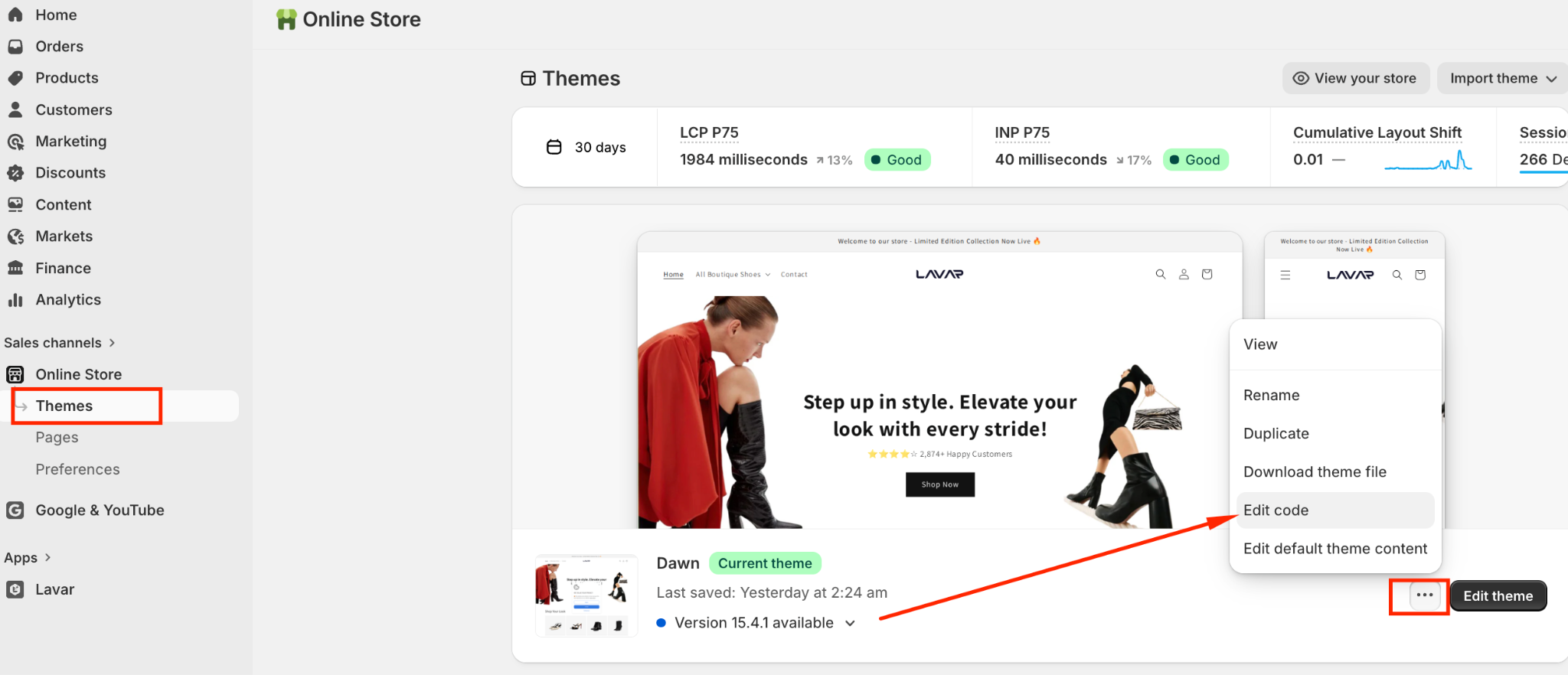
Navigate to Online Store → Themes.
Locate your current (published) theme.
Click the three-dot (⋯) icon next to the theme and select Edit code.
In the Templates folder, look for a file named product.json.
How to Interpret the Result
If product.json exists
Your theme is an Online Store 2.0 theme and is fully compatible with the Lavar app.If product.json does not exist
Your theme is a 1.0 (Vintage) theme. Unfortunately, 1.0 themes are not supported by Lavar at this time.
Why Theme Version Matters
Lavar relies on Shopify’s Theme App Extension framework, which is only supported by Online Store 2.0 themes. Due to Shopify platform limitations, apps like Lavar cannot function properly on 1.0 themes.
If your store is currently using a 1.0 theme, we recommend upgrading to a 2.0 theme to ensure compatibility and access to all Lavar features.
Should you need further support, please don't hesitate to reach out to our support team via email at support@lavar.app or submit a ticket here. We'd be happy to help.
Was this article helpful?
That’s Great!
Thank you for your feedback
Sorry! We couldn't be helpful
Thank you for your feedback
Feedback sent
We appreciate your effort and will try to fix the article