Add a moving text banner to highlight promotions, important announcements, or key messages across your store. The Scrolling Text Banner helps capture attention quickly and ensures customers don’t miss time-sensitive offers or important updates while browsing.
How the Scrolling Text Banner displays on the storefront
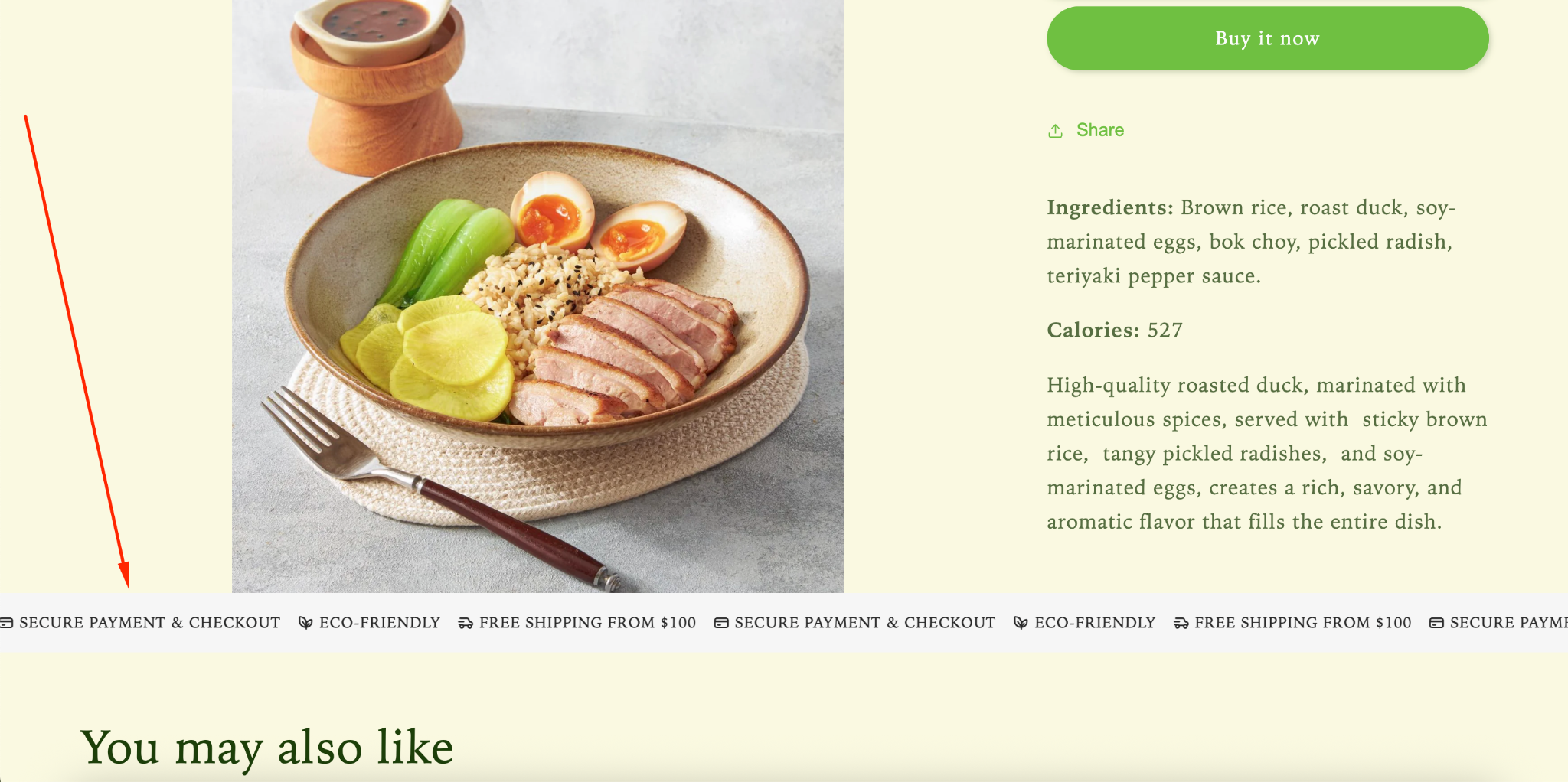
How to Set It Up
Step 1: Enable Lavar in Your Theme
Make sure the Lavar app embed is enabled in your Theme Editor first.
Please refer to this article for detailed instructions.
Step 2: Add Scrolling Text Banner Widget on Product page
Open Lavar in your Shopify Admin.
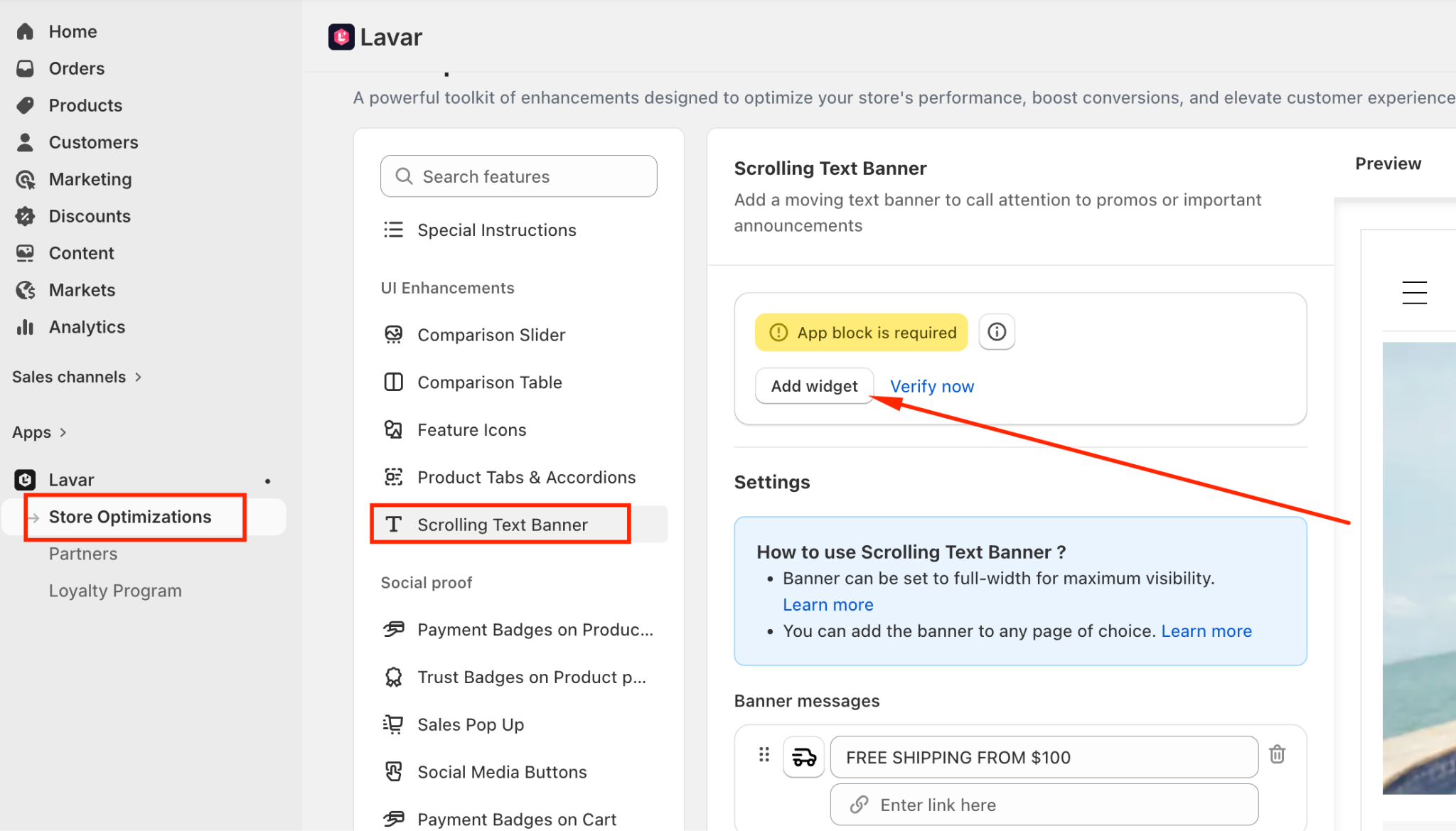
Navigate to Store Optimizations → Scrolling Text Banner
Click Add Widget.
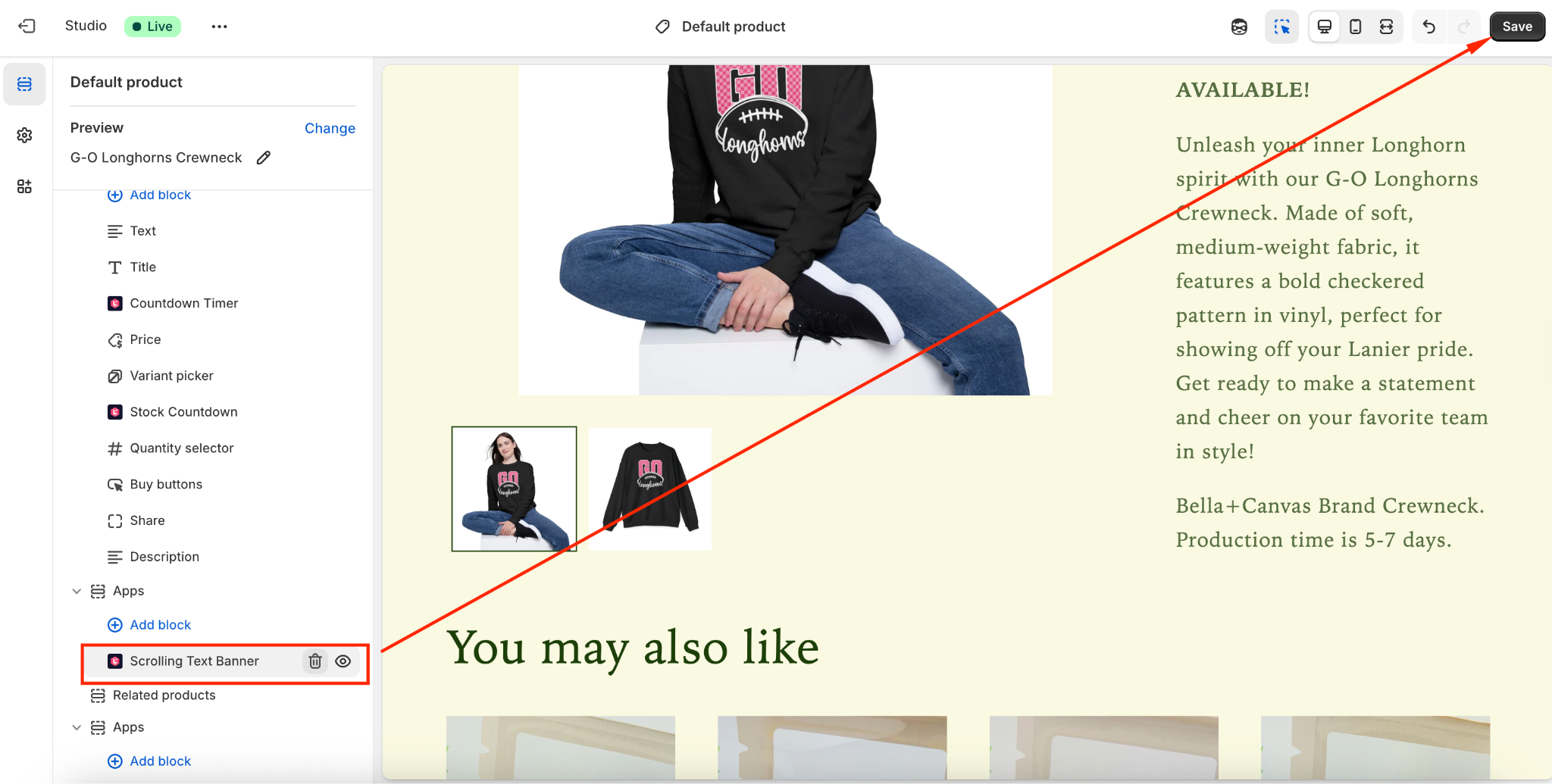
You will be directed to the Theme Editor page. Then you can move the Scrolling Text Banner to the position you want and click Save:
After setup, return to the app and click Verify Now to confirm the app block was added correctly. Then you can Activate the feature to see it on the storefront.
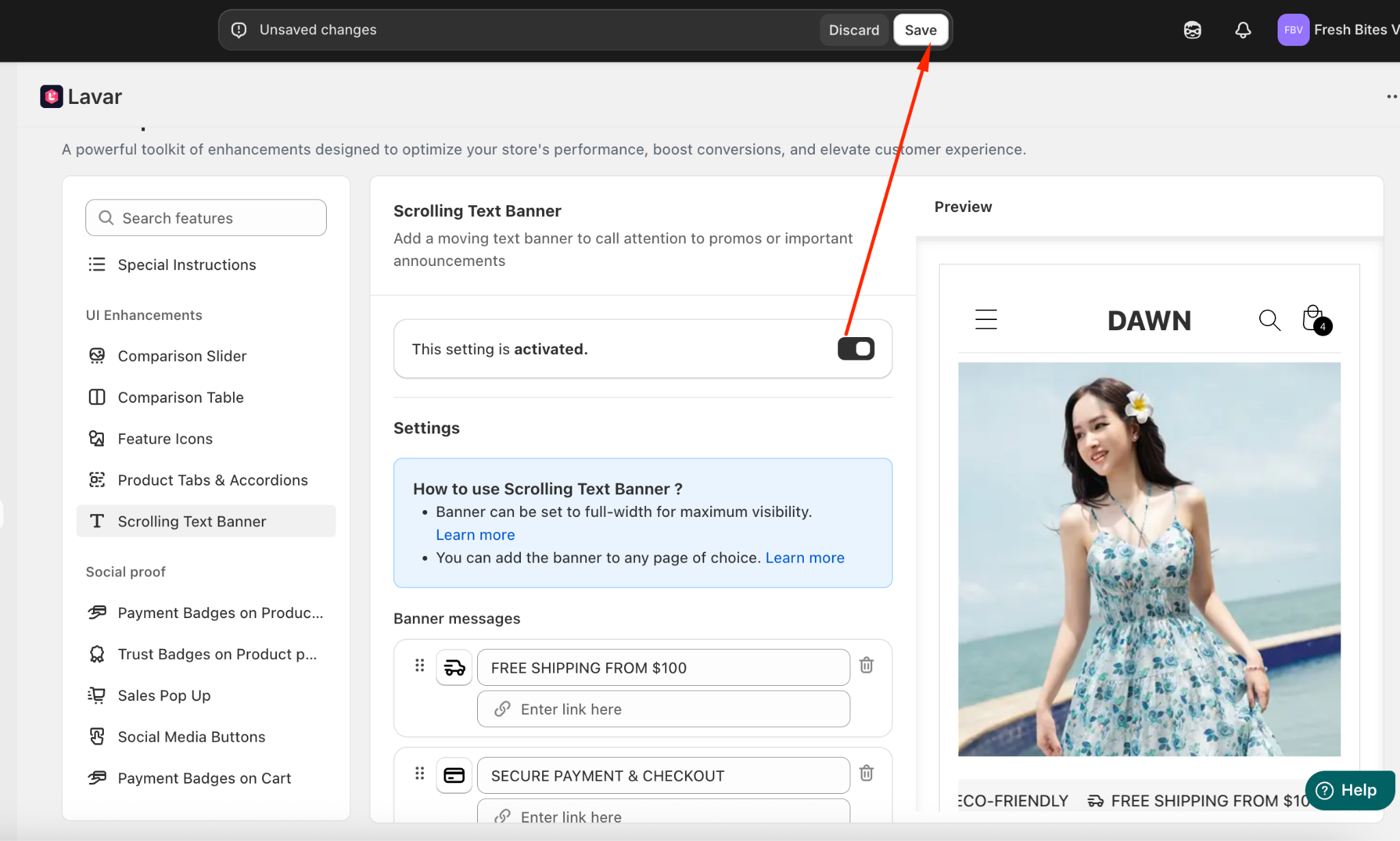
Step 3: Configure the Scrolling Text Banner Settings & Content
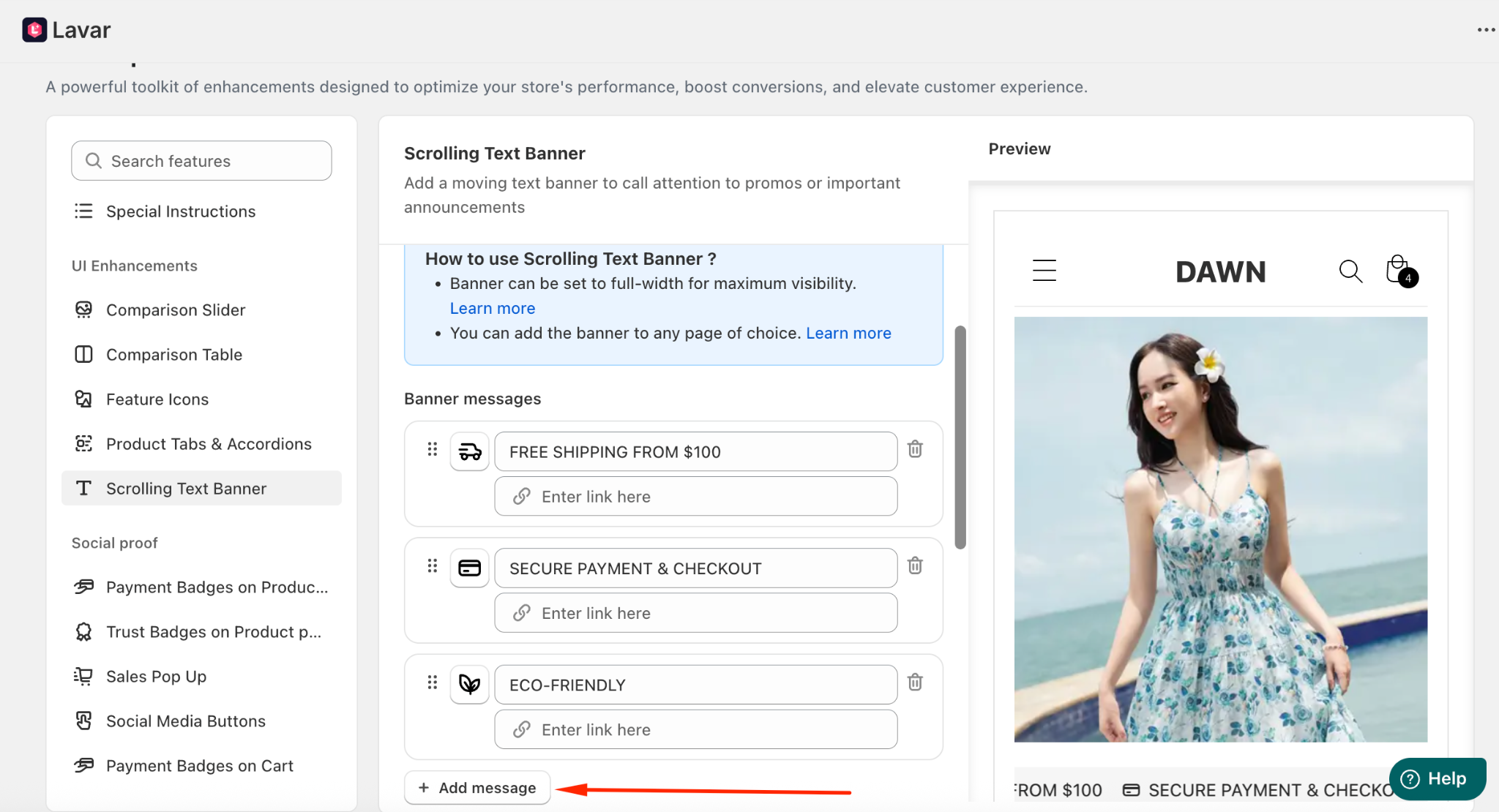
In the Settings section, you can add the banner message and customize its content.
Enter the Banner Message you want to display; add an Icon and a Link to direct customers to a specific page (such as a promotion, product collection, or announcement page).
Step 4: Customize Scrolling Text Banner Appearance
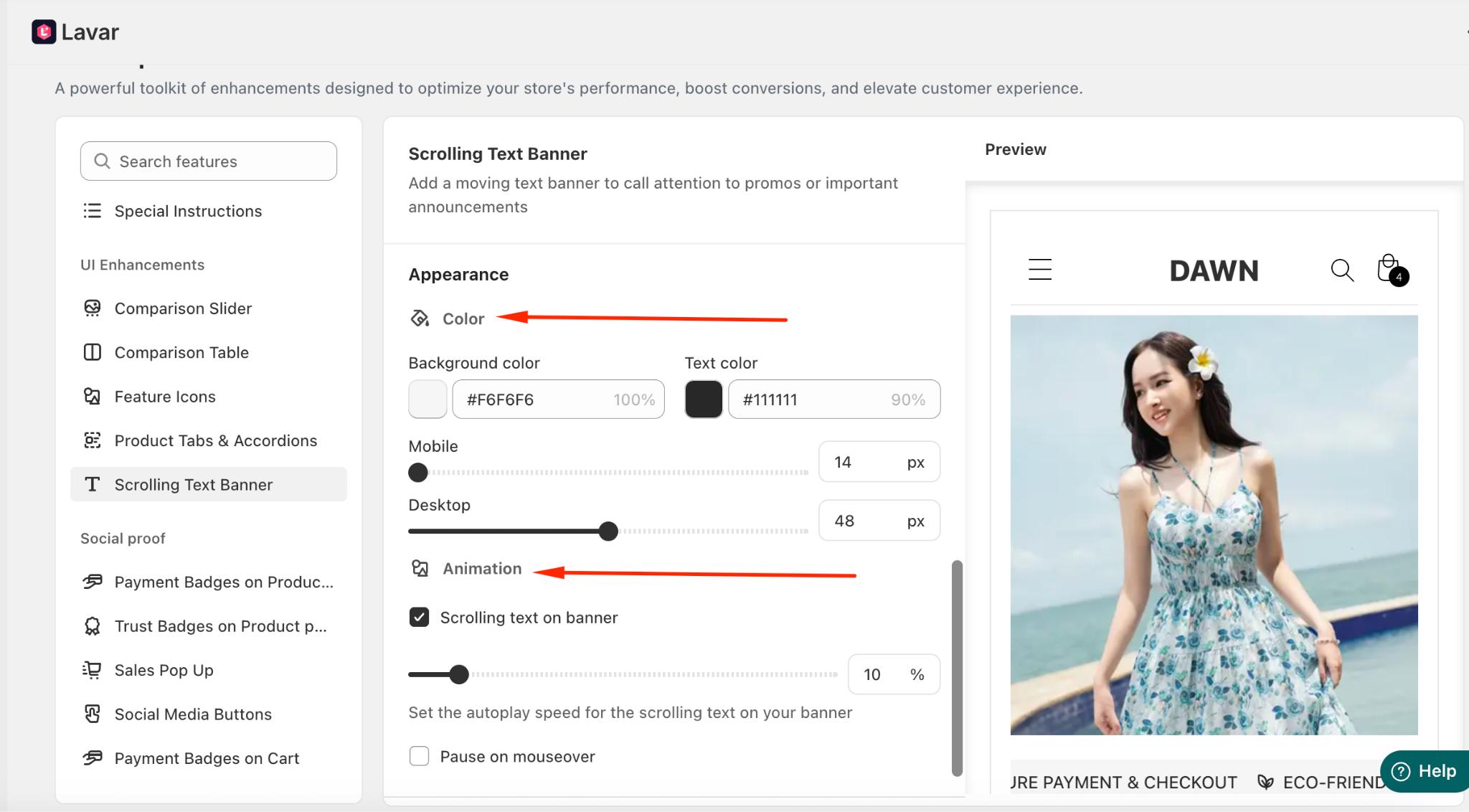
In the Appearance section, you can:
Apply custom colors to match your store design
Adjust the banner size for both desktop and mobile
Choose the animation style: scrolling text or static text
Set the autoplay speed for the scrolling text
Enable Pause on mouseover to stop the animation when customers hover over the banner
If you need further assistance, please feel free to contact us at support@lavar.app or submit a ticket here.
Was this article helpful?
That’s Great!
Thank you for your feedback
Sorry! We couldn't be helpful
Thank you for your feedback
Feedback sent
We appreciate your effort and will try to fix the article