The GDPR Cookie Banner helps you inform visitors that your store uses cookies to enhance their browsing experience and comply with privacy regulations such as GDPR, CCPA, LGPD, and more.
This feature allows customers to control their cookie preferences while helping your store stay compliant with international privacy laws.
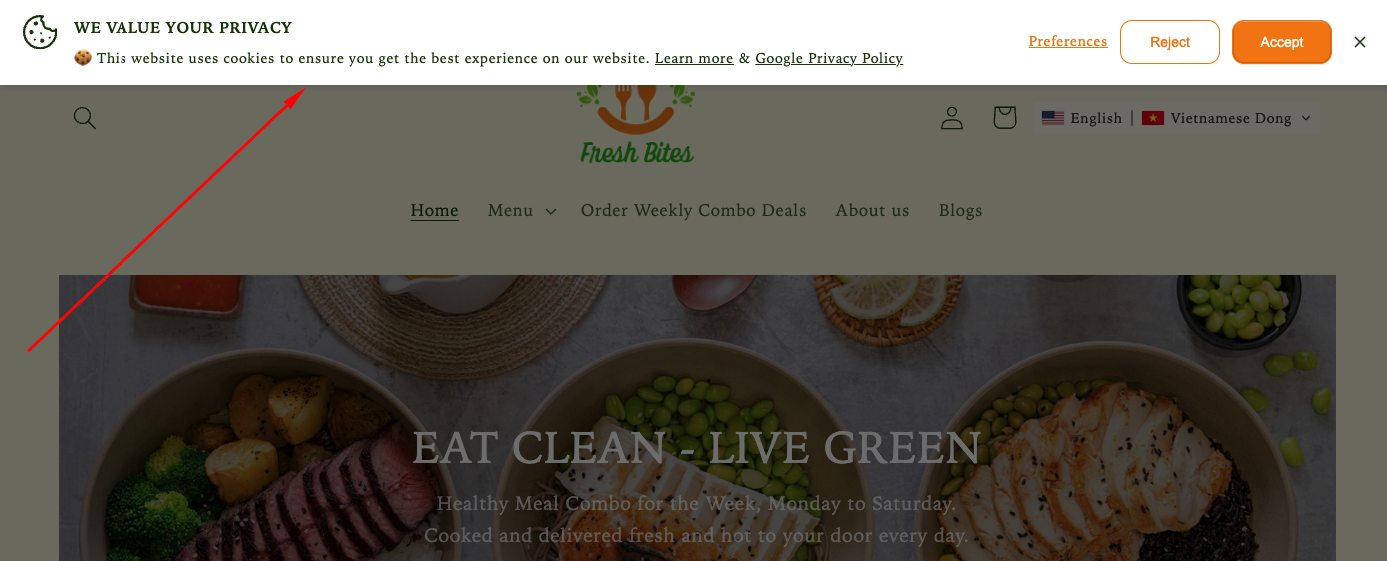
How the GDPR Cookie Banner displays on the storefront
How to Set It Up
Step 1: Enable Lavar in Your Theme
Make sure the Lavar app embed is enabled in your Theme Editor first.
Please refer to this article for detailed instructions.
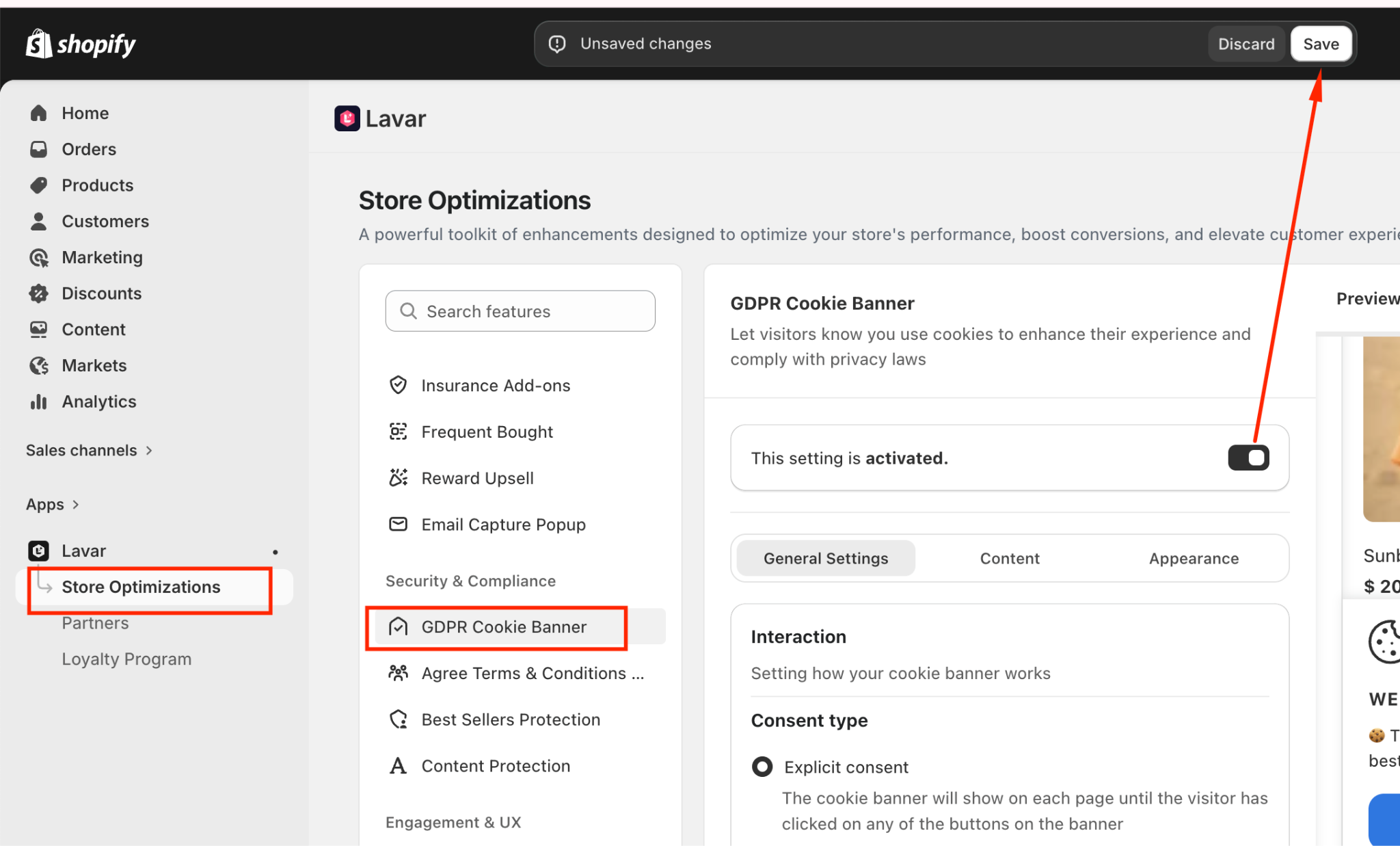
Step 2: Activate the feature GDPR Cookie Banner
Open Lavar in your Shopify Admin
Navigate to Store Optimizations → GDPR Cookie Banner
Click Activate feature and Save
Step 3: Configure the GDPR Cookie Banner Settings
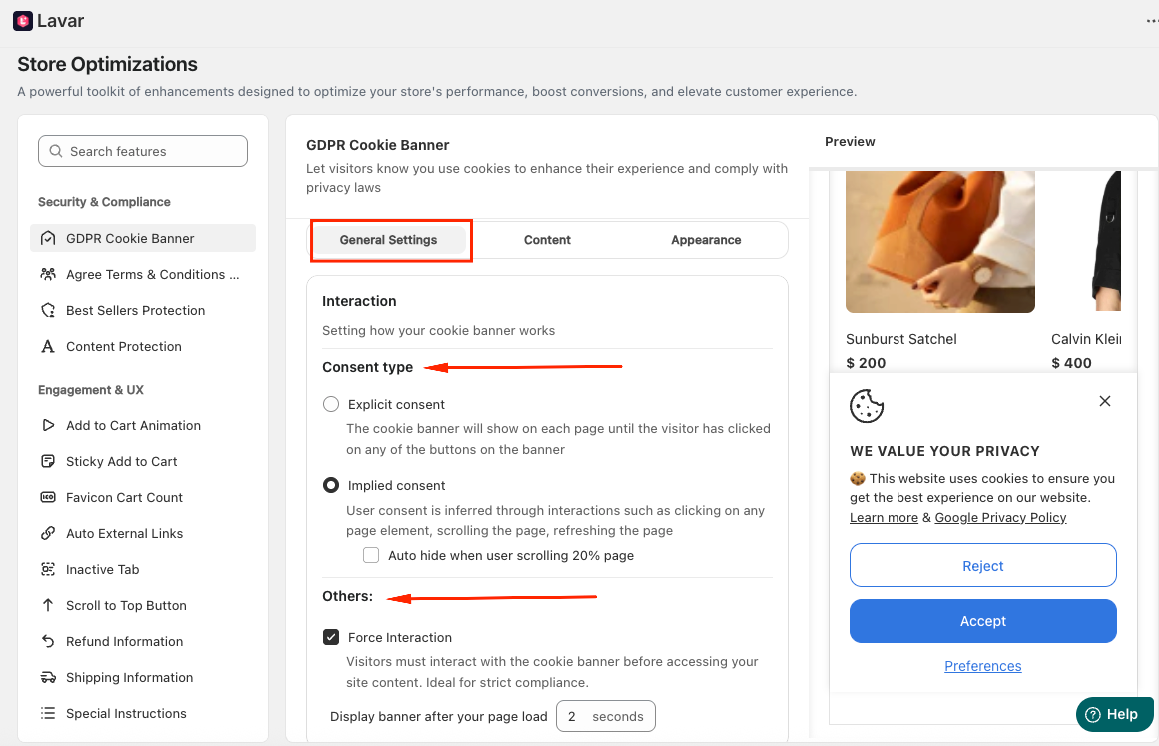
In the General Settings, configure the behavior and offer:
Interaction Settings: Choose how user consent is collected
Consent Type
Explicit consent: The banner will continue showing until the visitor clicks a button (Accept, Reject, etc.).
Implied consent: Consent is inferred when users interact with the page (scrolling, clicking, refreshing).
Optional: Auto hide when user scrolls 20% of the page
Additional Controls
Force Interaction: Visitors must interact with the cookie banner before accessing your site content. Ideal for strict compliance.
Display banner after page load (e.g., 5 seconds)
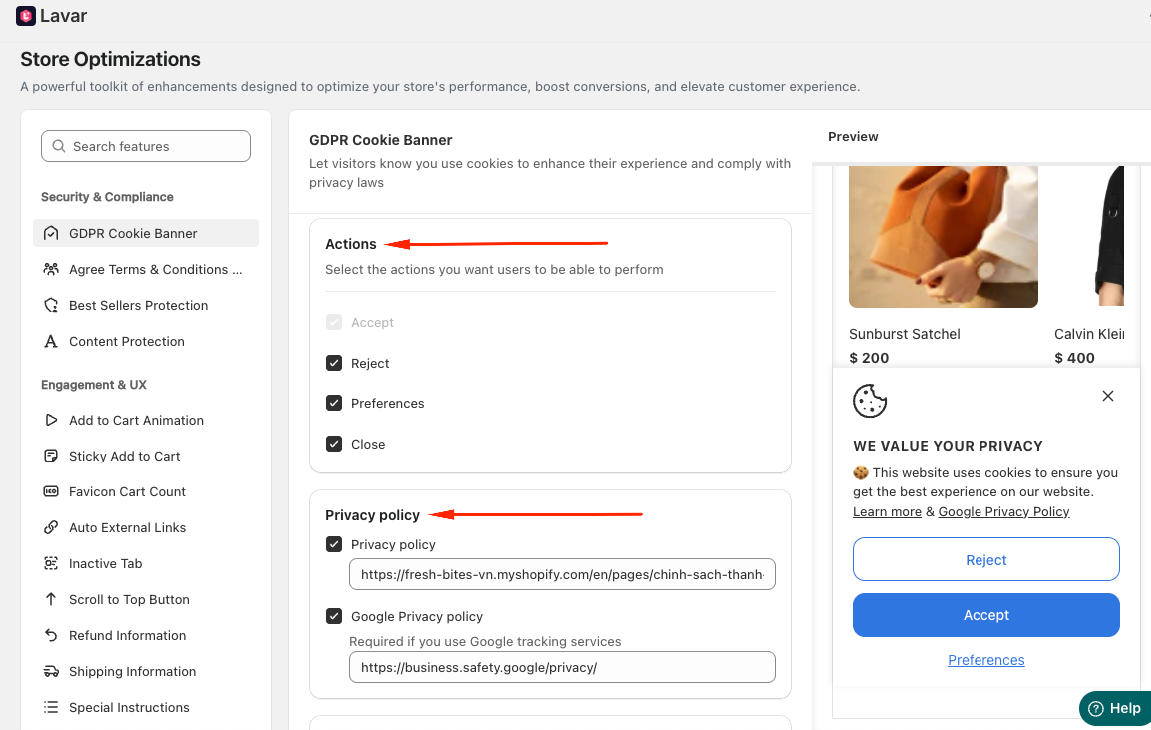
Actions: Select which actions users can perform (Accept / Reject / Preferences / Close)
Privacy Policy: Enter link of your own Privacy Policy or Google Privacy Policy
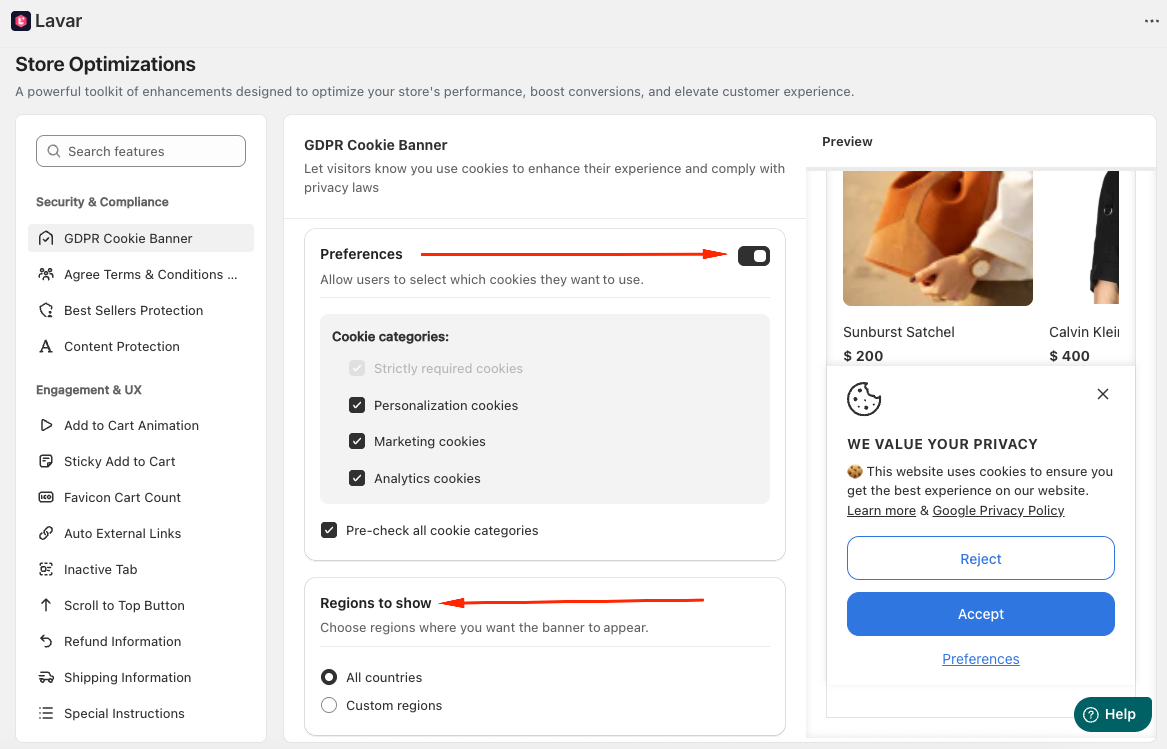
Preferences Settings: Allow users to select which cookies they want to enable.
Cookie Categories:
Strictly required cookies
Personalization cookies
Marketing cookies
Analytics cookies
Optional: Pre-check all cookie categories
Regions to Show: Choose where the banner should appear:
All countries
Custom regions: Europe (GDPR), US (CCPA + US State Laws), Brazil (LGPD), Canada (PIPEDA) or Japan (APPI)
In the Content Settings, set up these informations:
Cookie content: Display on the primary modal (or banner)
Preferences popup content: Display on the Preferences modal
Including descriptions for:
Strictly required cookies
Personalization cookies
Analytics cookies
Marketing cookies
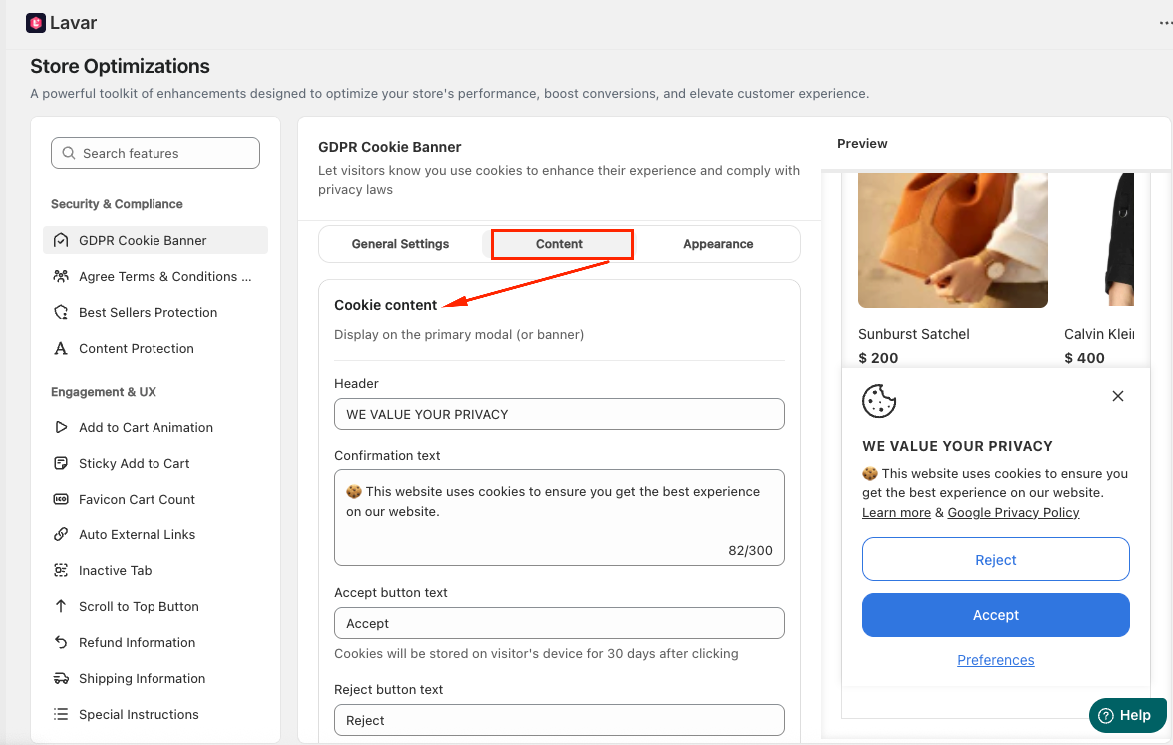
Note: Cookies will be stored on visitor's device for 30 days after clicking. If visitors switch browsers, devices, or clear their browser cookies, the banner may appear again.
Step 4: Customize the GDPR Cookie Banner Appearance
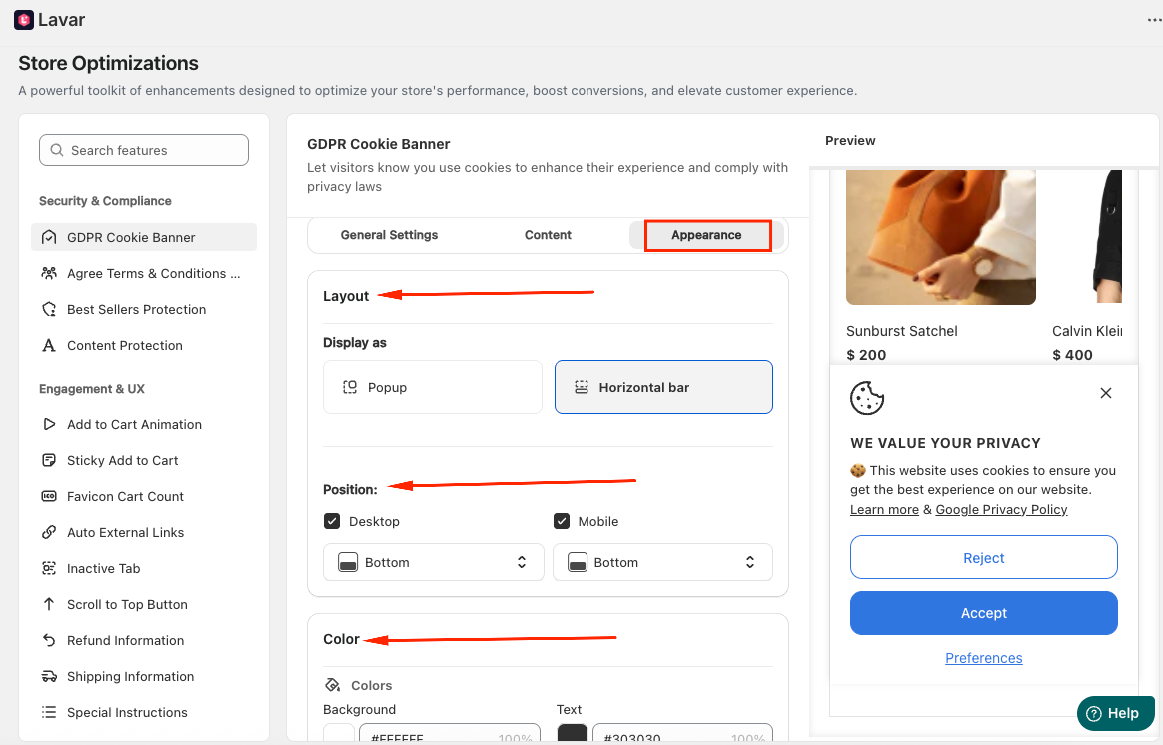
In the Appearance Settings section, you can customize how the cookie banner looks on your storefront:
Layout: Choose how the banner is displayed as a Popup modal or Horizontal Bar
Position: Select where the banner appears on the Top or Bottom for Desktop and Mobile
Colors: Apply custom colors to match your store branding and overall design.
If you need further assistance, please feel free to contact us at support@lavar.app or submit a ticket here.
Was this article helpful?
That’s Great!
Thank you for your feedback
Sorry! We couldn't be helpful
Thank you for your feedback
Feedback sent
We appreciate your effort and will try to fix the article