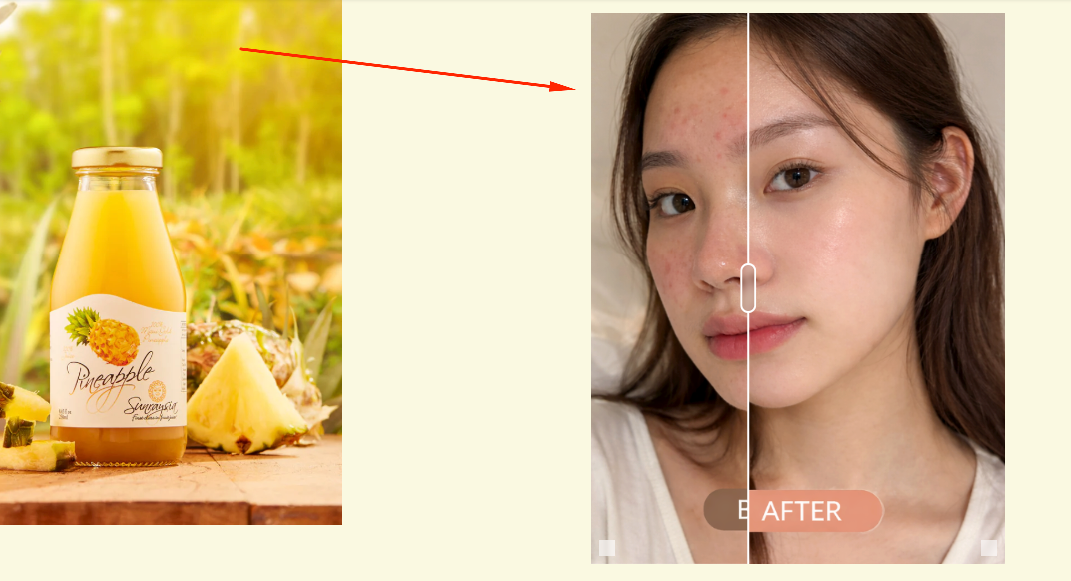
Let shoppers compare products side-by-side with a draggable slider that clearly highlights differences and improvements. This interactive visual element helps customers quickly understand product benefits, making it easier for them to make confident purchasing decisions.
How the Comparison Slider displays on the storefront
How to Set It Up
Step 1: Enable Lavar in Your Theme
Make sure the Lavar app embed is enabled in your Theme Editor first.
Please refer to this article for detailed instructions.
Step 2: Add Comparison Slider Widget on Product page
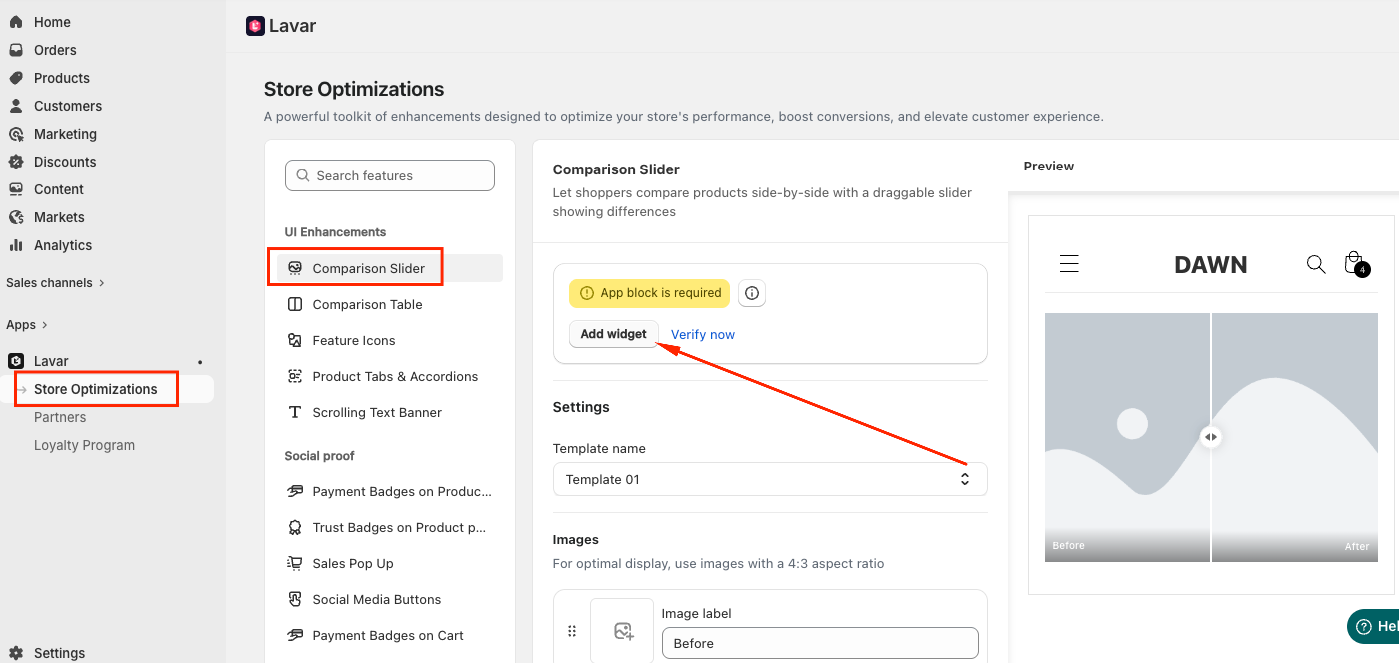
Open Lavar in your Shopify Admin.
Navigate to Store Optimizations → Comparison Slider
Click Add Widget.
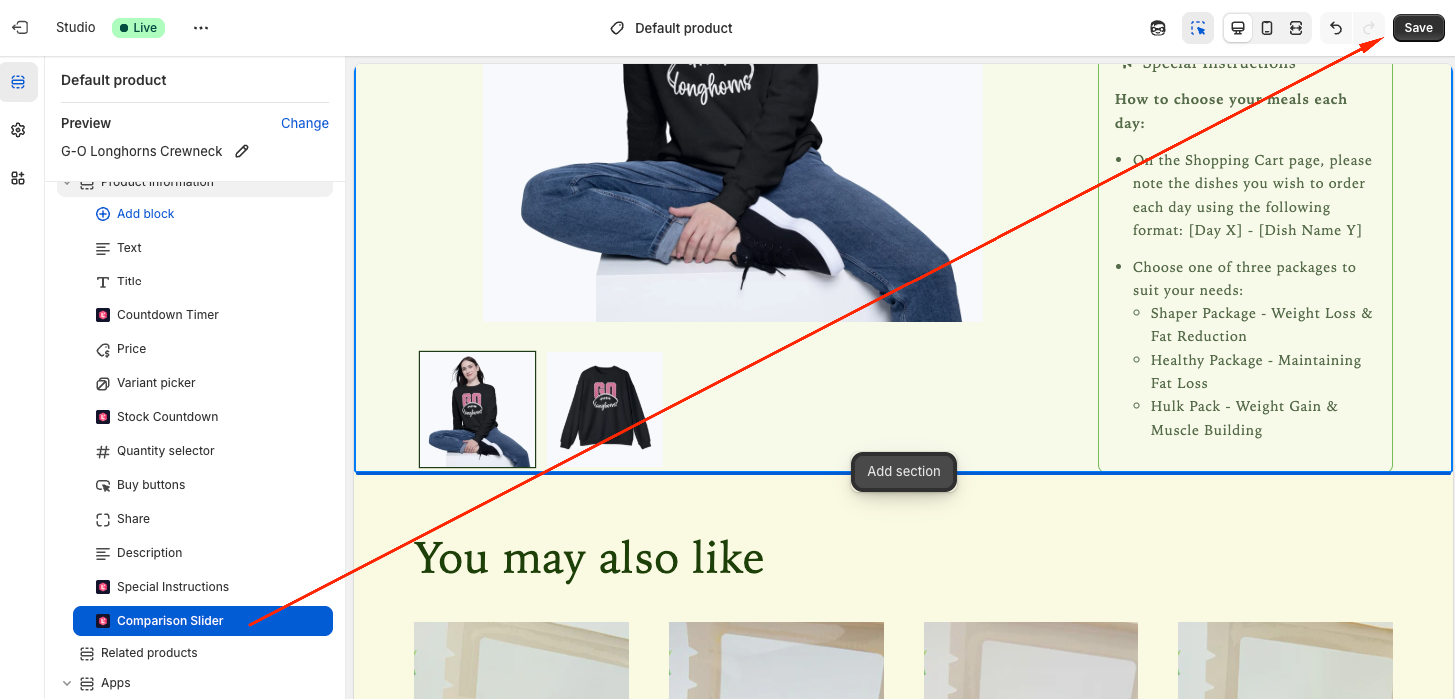
You will be directed to the Theme Editor page. Then you can move the Comparison Slider to the position you want and click Save:
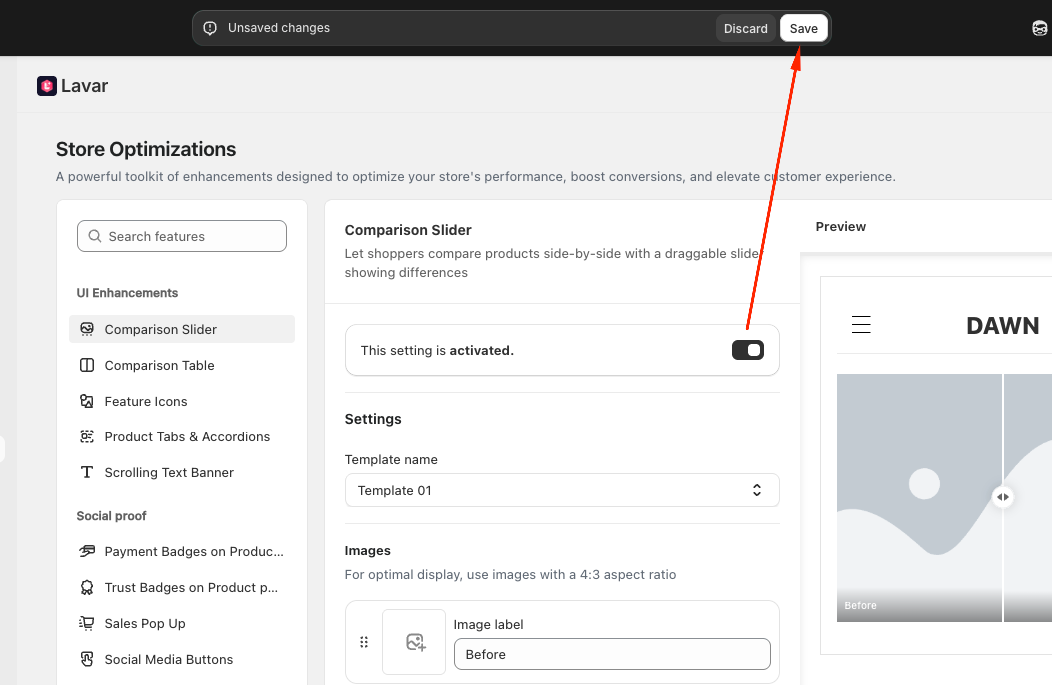
After setup, return to the app and click Verify Now to confirm the app block was added correctly. Then you can Activate the feature to see it on the storefront.
Step 3: Configure the Comparison Slider Settings & Content
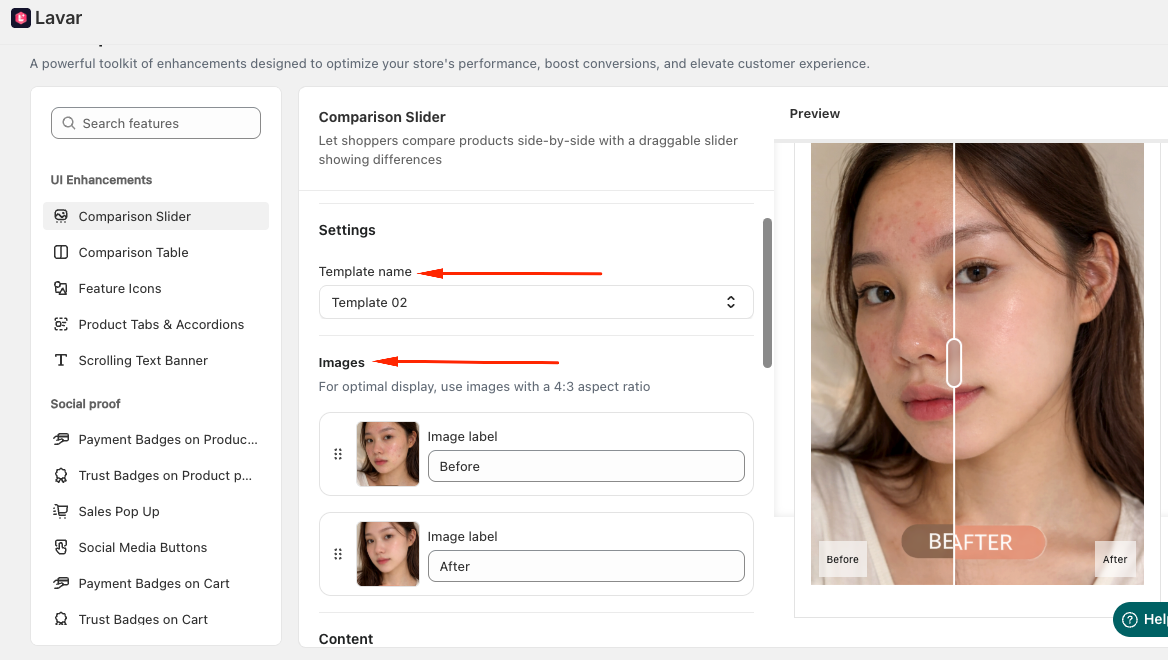
Choose a template layout with either 4:3 or 3:4 aspect ratio.
Upload the Before and After images and add labels for each image.
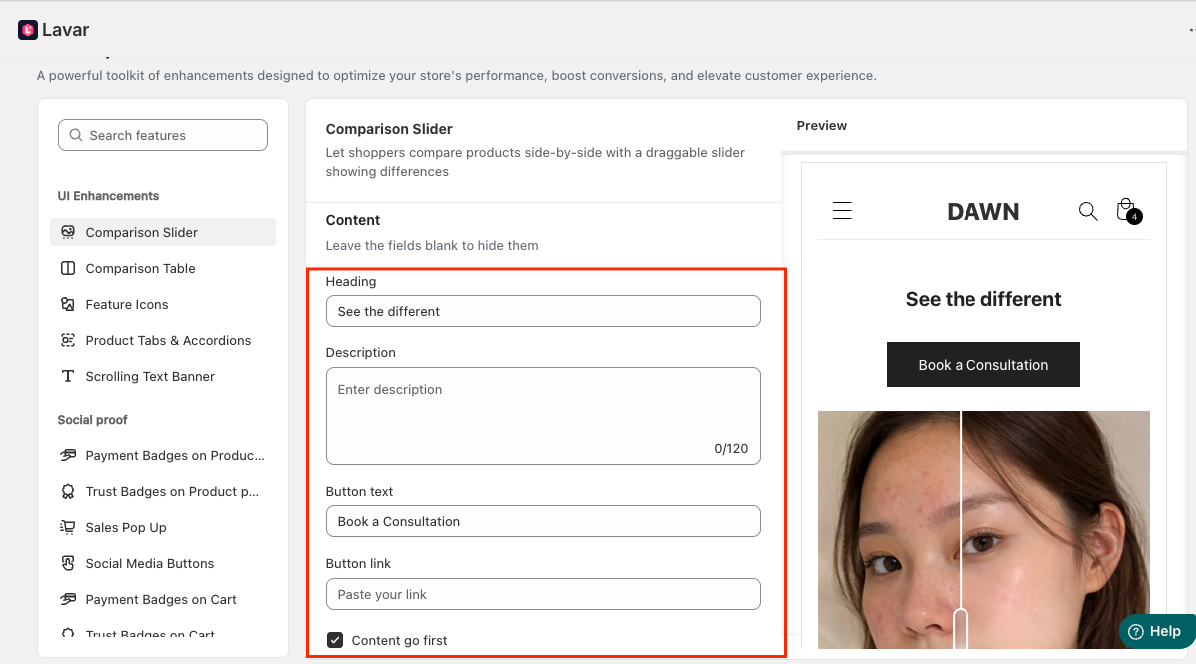
Next, enter the content displayed with the slider: Heading, Description, Button Text & Link.
Step 4: Customize Comparison Slider Appearance
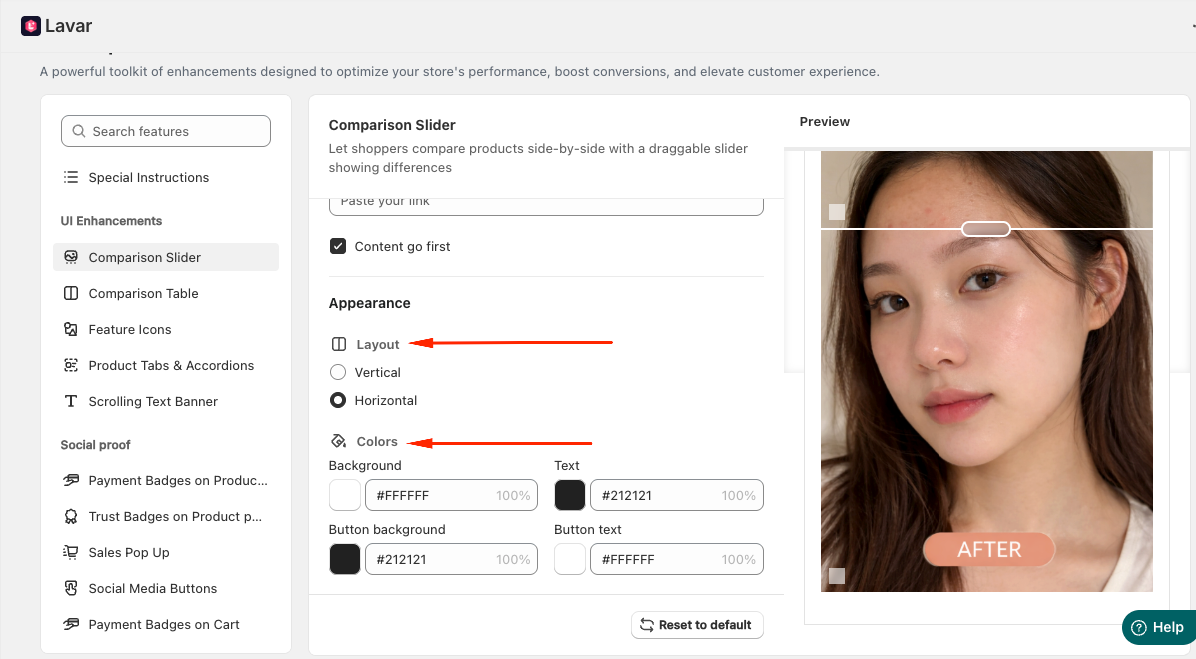
In the Appearance section, you can: Select a template and Apply colors for the Comparison Slider
If you need further assistance, please feel free to contact us at support@lavar.app or submit a ticket here.
Was this article helpful?
That’s Great!
Thank you for your feedback
Sorry! We couldn't be helpful
Thank you for your feedback
Feedback sent
We appreciate your effort and will try to fix the article