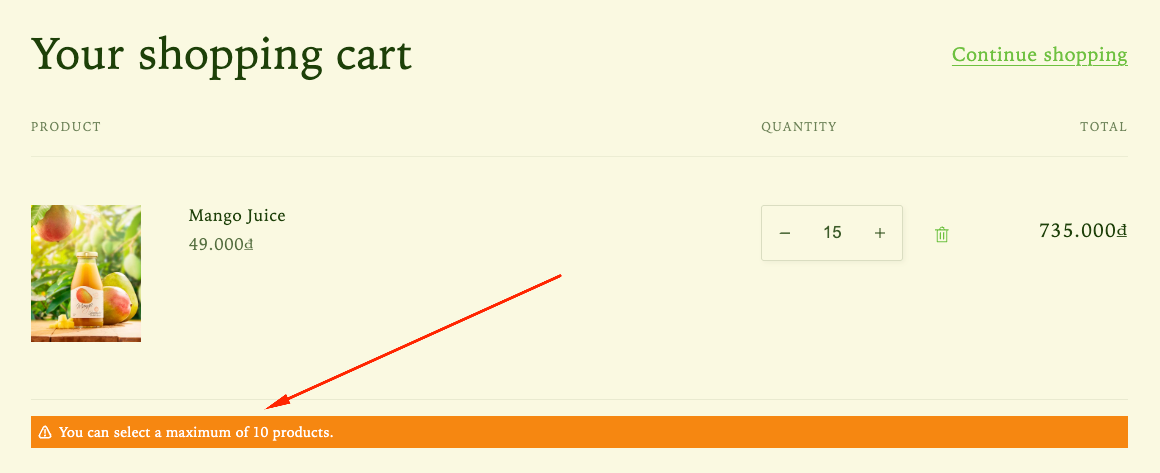
The Order Limits feature applies on the cart page, allowing you to set minimum or maximum limits for order quantity, value, or weight. This helps prevent overselling and manage unusually large orders before customers proceed to checkout.
How the Order Limits feature displays on the storefront
How to Set It Up
Step 1: Enable Lavar in Your Theme
Make sure the Lavar app embed is enabled in your Theme Editor first.
Please refer to this article for detailed instructions.
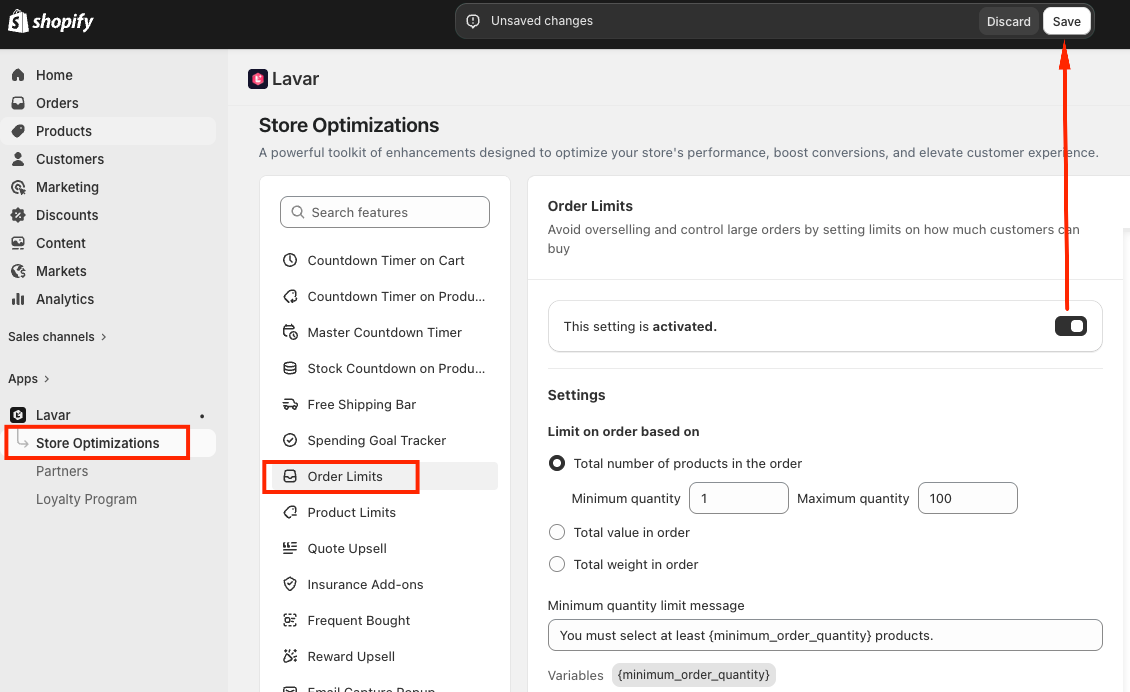
Step 2: Activate the Order Limits feature
Open Lavar in your Shopify Admin
Navigate to Store Optimizations → Order Limits
Click Activate feature and Save
Step 3: Configure the Order Limits
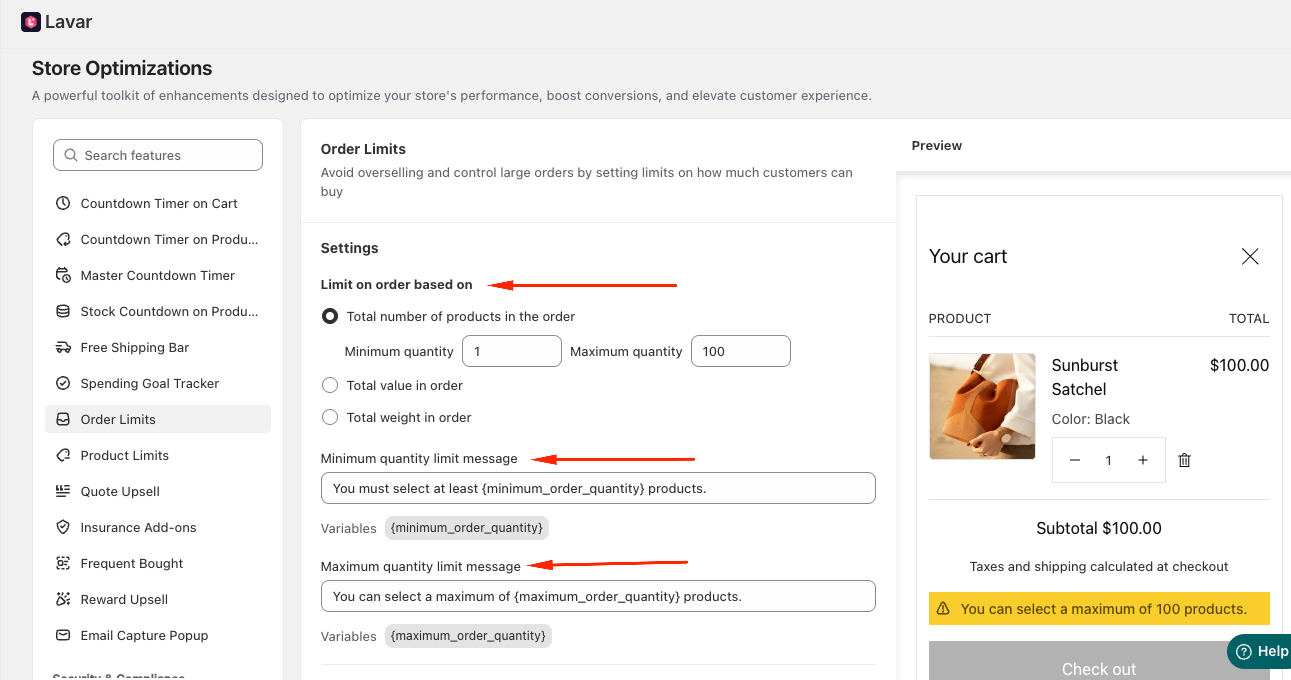
You can set order restrictions based on different conditions:
Total number of products in an order - Set minimum and maximum quantity limits.
Total order value - Set minimum and maximum price thresholds.
Total order weight - Set minimum and maximum weight limits using your preferred unit (kg / g / lb / oz).
Customize the messages shown to customers when order limits are not met. This helps customers understand why they cannot proceed to checkout.
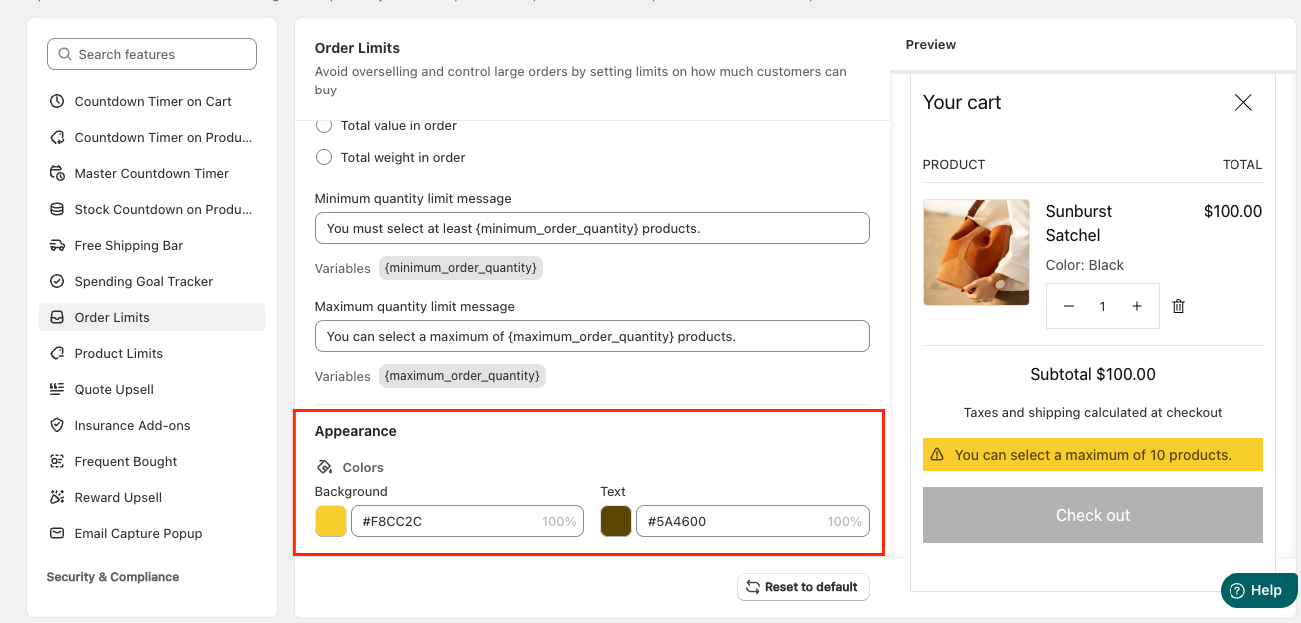
Step 4: Customize the Order Limits Appearance
In the Appearance Settings section, you can apply colors to match your store design.
If you need further assistance, please feel free to contact us at support@lavar.app or submit a ticket here.
Was this article helpful?
That’s Great!
Thank you for your feedback
Sorry! We couldn't be helpful
Thank you for your feedback
Feedback sent
We appreciate your effort and will try to fix the article